

01 / Get set up
Halo on your phone. Prism at your desk.
Use Halo Capture to photograph the vehicle. Use the Halo Prism dashboard to find sessions, review images and check delivery. Your dealership’s capture link connects the work to the right store.
- Use your assigned capture link
Open the link provided by your dealership. Check that it is the correct store and operator link. A reusable link starts a new capture session; it is different from a link to review an existing session.
- Add Halo to your home screen
Use your phone browser’s Add to Home Screen or install option, then open Halo from that shortcut. There is no separate app-store download. Browser menu wording varies by phone.
- Allow camera access and prepare your phone
Use a supported phone, clean the camera lens and start with enough battery. Complete initial setup while connected. If camera access is blocked, allow it for Halo in the browser or phone settings.
- Know who owns the handoff
Before your first vehicle, identify the person who checks image quality and listing delivery, and the person to contact if a session stalls.
Capture can work offline. Upload needs a connection.
After setup, supported on-phone capture functions can work offline. Image upload, processing and delivery need connectivity. Keep Halo open until the upload has completed.
02 / Prepare the vehicle
Right vehicle. Clear route. Ready to capture.
- Confirm the VIN before you start
Check the captured or entered VIN against the vehicle. Confirm any requested vehicle and odometer details. An incorrect VIN can attach photos to the wrong record or prevent the stock-in match.
- Choose the right moment
For a trade-in, capture at appraisal. For new inventory, start when the vehicle arrives. Refresh the exterior after recon and detailing so the listing reflects its current condition.
- Make the whole walkaround possible
Allow about five feet of working clearance where practical. Check both sides, front and rear. If another vehicle or obstacle blocks a required view, arrange to move the vehicle safely before continuing.
- Prepare a consistent exterior
Close doors, hood and tailgate for the exterior sequence. Use usable light, keep the lens clean and watch for glare or blur. Keep people and unnecessary personal items out of the photographs.
03 / Walk the orbit
Move to the dot. Halo takes the shot.
Halo’s orbit is a guided walk around the physical vehicle. Move your body around it, follow the next target and collect every required view. You are gathering close-range coverage; Halo creates the whole-vehicle listing compositions afterwards.
- Follow the target shown on your phone
Move to the vehicle-anchored magenta dot. Follow the view and target prompts rather than taking unrelated photos from one position.
- Let the guidance set your position
Adjust your distance and phone angle as prompted. Keep the phone level and the requested vehicle area clear.
- Pause for a clear capture
Hold steady. Halo checks view, target, distance, level and clarity before capturing automatically. Wait for the capture to register, then move to the next target.
- Complete all 15 capture points
Continue in the order shown by the app. Do not skip the far side, corners or end views. Check the on-screen progress before finishing.
15 capture points → eight finished exterior views
The source photos can show sections of the vehicle. You do not need to step back and compose eight whole-car photographs. Follow Halo’s requested coverage.
04 / Manual help & active learning
You’re helping Halo learn.
Halo is new and still improving how it detects some vehicle types, especially pickups and vans. Every completed capture feeds back into our training set, helping Halo recognise those vehicles better over time.
WHEN AUTOMATIC CAPTURE GETS STUCK
Double-tap the capture button area.
If you are correctly positioned and automatic capture is not taking the shot, double-tap the capture button area to bypass automatic capture. Hold the phone steady, check that the shot registered, then continue the guided walkaround.
- First follow the position, distance and alignment prompts.
- Use the bypass when automatic capture needs help, including on some pickups and vans.
- Still capture a clear image of the requested area and complete the required views.
- Finish the upload so the completed capture reaches Halo.
Help get the shot.
Complete the required view when automatic capture needs assistance.
Feed the training set.
Completed captures feed back after every use.
Better detection.
Those examples help improve recognition of vehicle types over time.
An improvement is not guaranteed on the next shot or after a fixed number of vehicles. Keep using the bypass when needed.
05 / Finish & upload
Stay until the upload is confirmed.
The final photo is not the end of the job. Your photos must finish uploading before the rest of the workflow can continue.
Keep Halo active and your screen awake.
Do not lock your phone, close Halo or switch apps until you see confirmation that your photos have uploaded successfully. Check for incomplete or failed uploads before moving on.
- Complete the required capture
Check the photo progress and follow any review or retake prompts. A capture in progress still needs attention.
- Stay connected and watch the upload
If signal is weak, move to a stronger connection while keeping Halo active. Do not assume photos have uploaded just because they were taken.
- Confirm success
Read the completion message in the app. If you are unsure, ask your dealership lead to check the matching session and received photo count in Prism.
- Escalate a stalled upload
Record the vehicle, approximate capture time and on-screen message. Contact your dealership lead or Halo. Avoid starting duplicate sessions or clearing browser data while an upload is unresolved.
Uploaded, delivered to vAuto and visible on a listing are separate milestones. Check each where it is reported.
06 / Review the photos
Know which images you are looking at.
In Prism, open the vehicle’s capture session and use the three photo-stage tabs. Each tab answers a different question.
The original, uncropped photos received from the Capture PWA. Check coverage, clarity and the vehicle’s visible condition.
Intermediate transparent eight-view images before dealership presentation. These are for review and are not exportable from this stage.
The finished dealership presentation images. Review the vehicle, edges, background and branding. “Generated” is not an approval or publishing status.
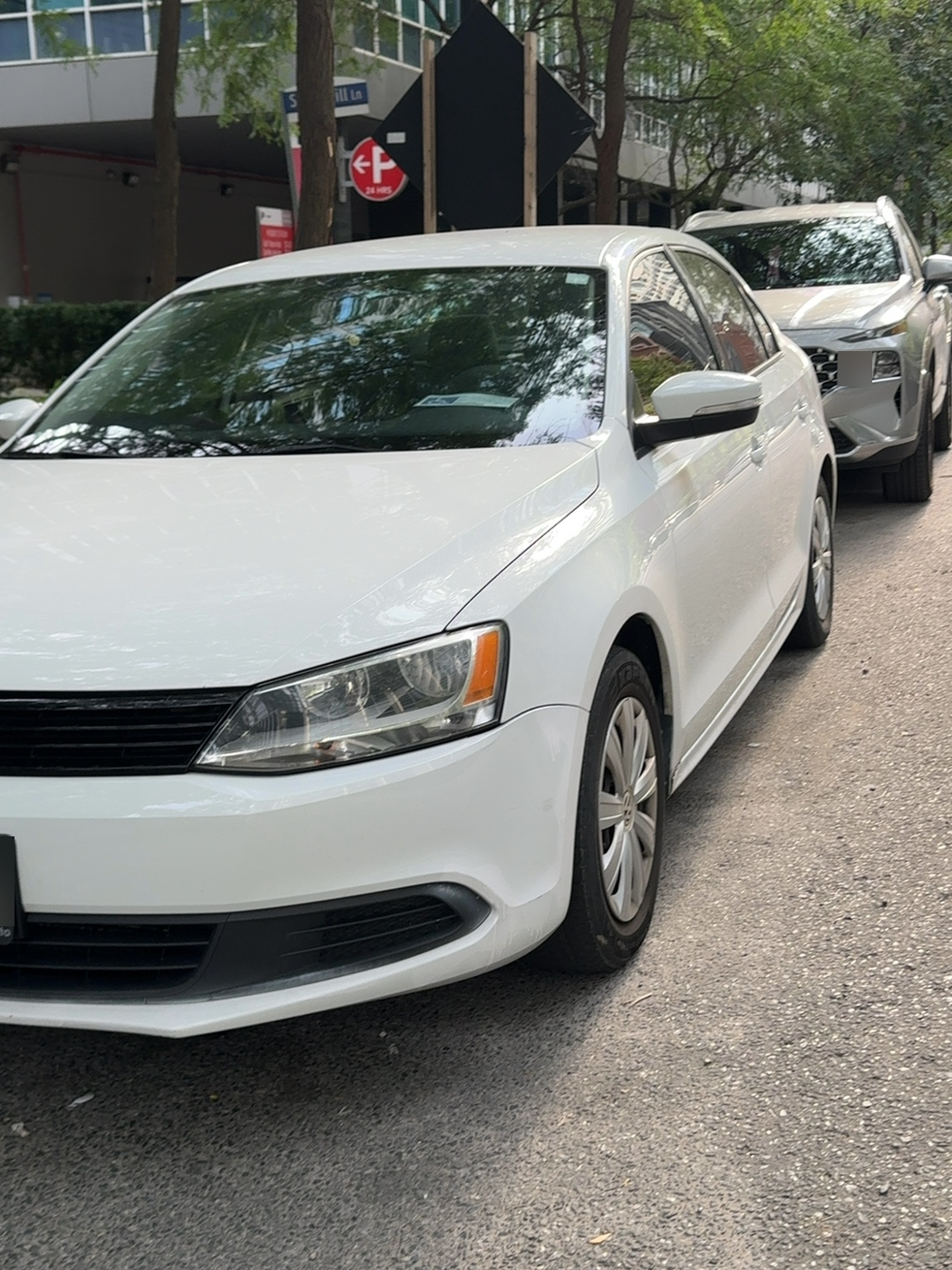
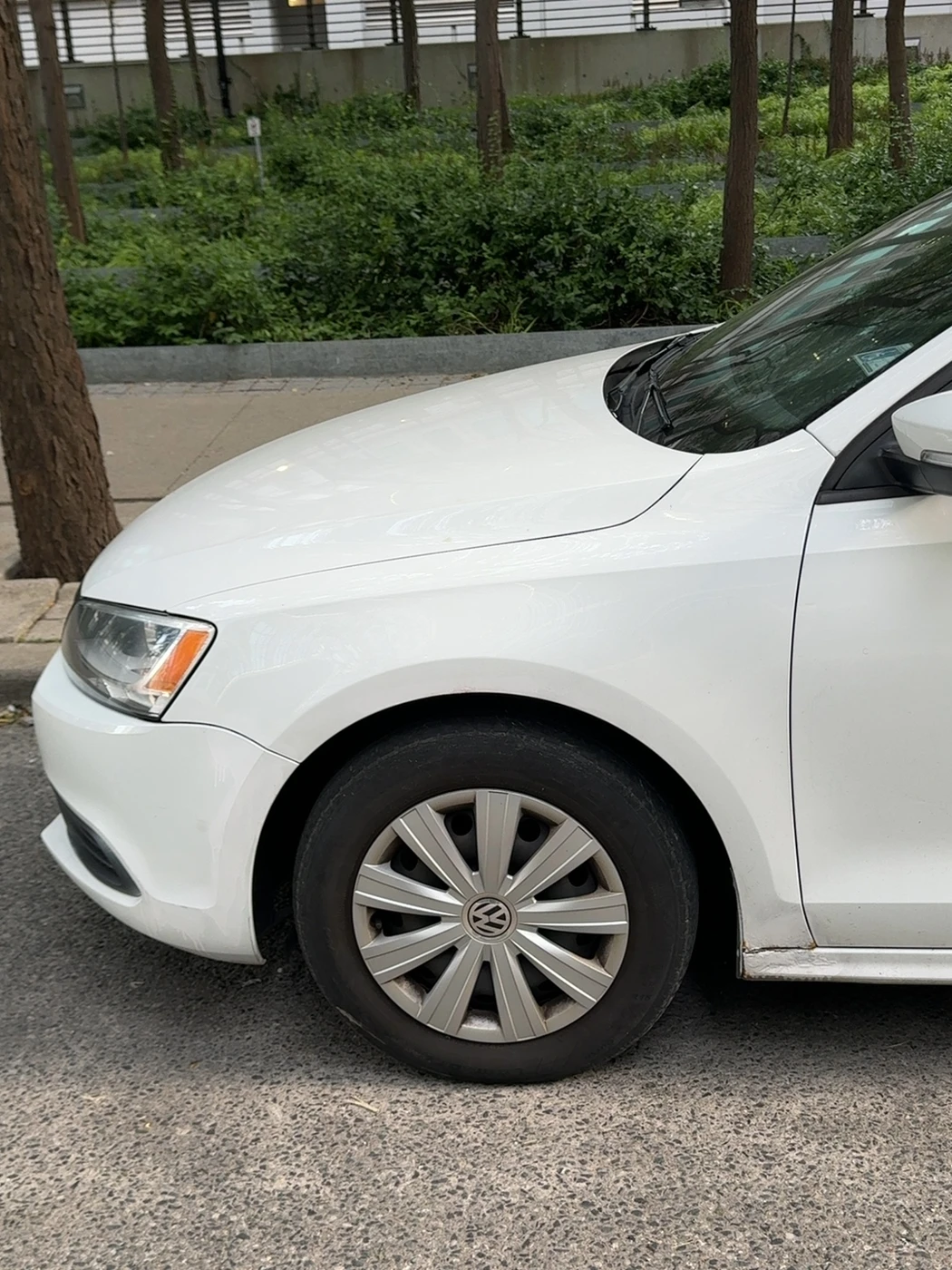
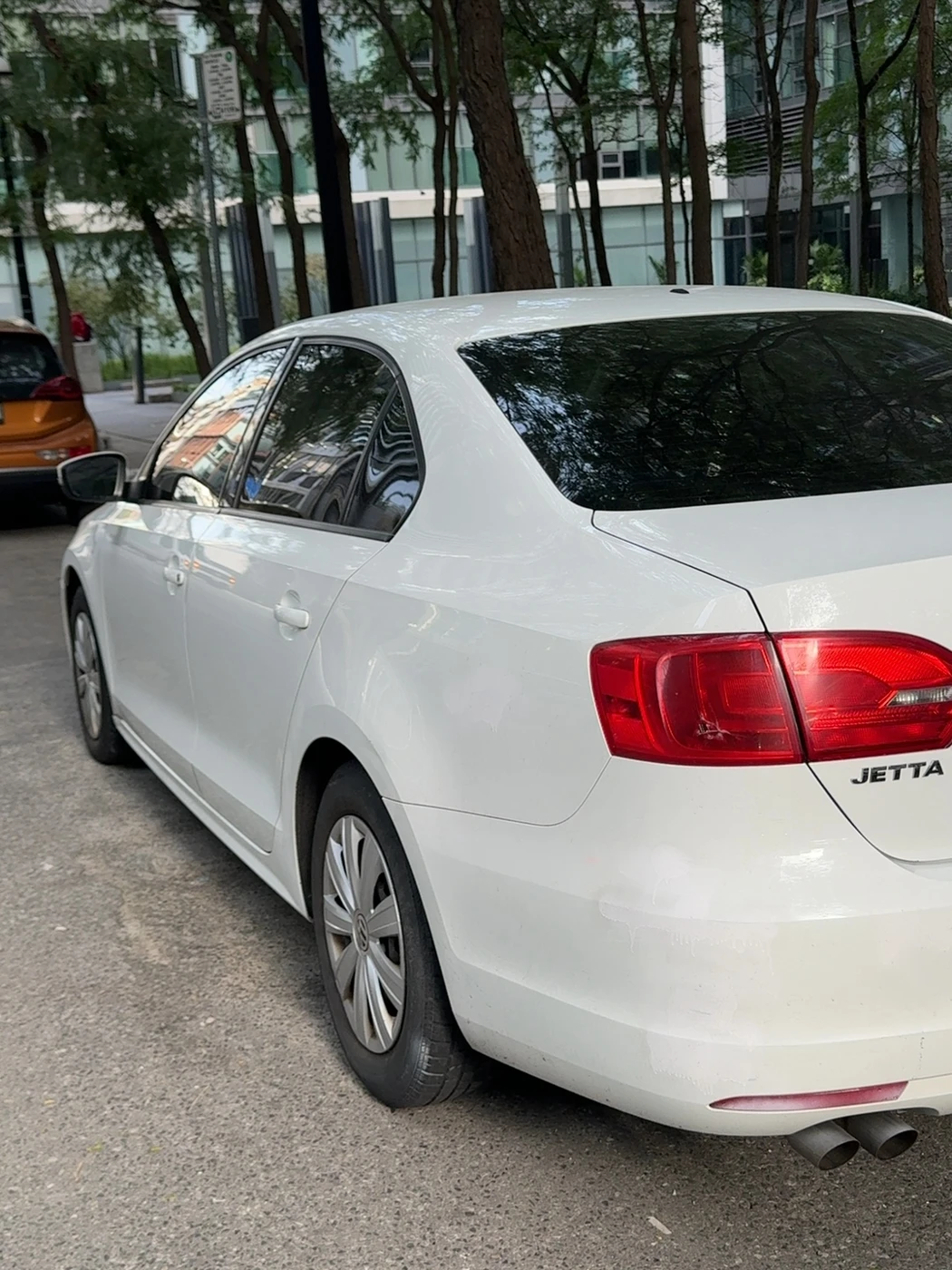
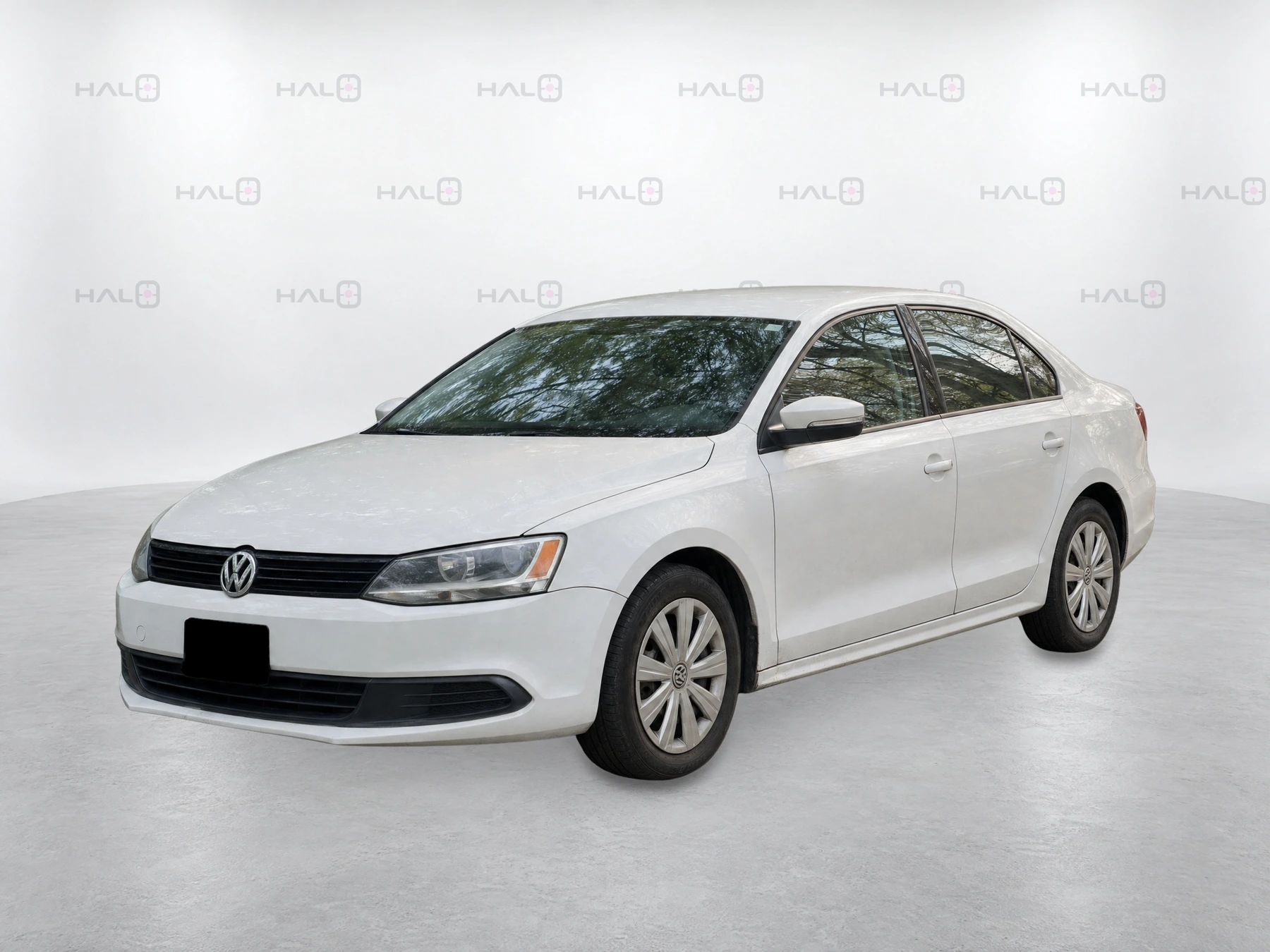
Report a problem before it reaches the listing.
Check for missing views, clipped vehicle parts, incorrect details or distracting presentation. Send the session reference and affected view to your dealership lead or Halo. Do not treat an automated pass as final merchandising approval.
07 / Appraisal → in stock → listing
One capture. Distinct delivery checks.
Appraisal imagery and retail listing imagery have different jobs. Follow the vehicle through both stages, using the correct VIN throughout.
AT APPRAISAL / VAUTO
Original photos support the appraisal.
Complete and upload the Halo capture, then check the session’s vAuto delivery panel. Look for Delivered and the verified raw-photo count. Confirm the images against the right vehicle in vAuto.
AFTER ACQUISITION & STOCK-IN / MERCHANDISING
The finished set supports the listing.
A matching inventory record and approved images are required for publishing. Your dealership’s connected feed carries the finished images onward. Confirm the correct photo set on the dealership website and relevant listing destinations.
Follow your dealership’s connected delivery route.
Halo supports Boost and HomeNet workflows. Boost-connected stores can check mapped inventory in In-stock arrivals. HomeNet-connected stores can check configured CSV and scheduled delivery history. Your onboarding lead will confirm your store’s route; the presence of a menu does not mean its connection is enabled.
Boost-connected stores
Use mapped Boost inventory to check the vehicle record. Confirm finished-image delivery and the actual downstream listing with your merchandising lead.
HomeNet-connected stores
Approved final images can enter the configured CSV/SFTP delivery workflow. Check CSV history and Delivery history. A configured Dealer ID, shared transport and schedule are needed for scheduled delivery.
Two ways to start
Appraisal first: capture the trade-in, use the original photos in vAuto, then reuse the approved merchandising set after acquisition and stock-in.
Arrival first: capture new or already-acquired inventory when it arrives, then follow the same upload, review and delivery checks. An appraisal is not required for every vehicle.
The capture stage has completed. Check the received photo count and delivery status separately.
The raw appraisal photos were verified at vAuto. This does not prove the finished listing images are online.
Images have been produced. Review and approval remain separate.
Check the actual vehicle listing and gallery. Feed timing can vary; escalate with the VIN and the last confirmed stage.
08 / Your Prism dashboard
Find the vehicle. Check the evidence.
Start at Capture Sessions ↗. The walkthrough uses a dealership workspace reviewed on 28 October 2026. Available controls and connected services depend on your account role and store setup.
- Capture Sessions: find and review
Enter the full 17-character VIN in Find by VIN and choose Find Vehicle. Use the capture-link and capture-status filters to narrow the list. Results mask the VIN. Check Captured photos and the capture date; use View photos to review the session.
- Session: read the delivery and activity panels
Check vAuto delivery and the verified raw-photo count. Expand Session activity for capture, processing and vAuto events. Activity times are labelled UTC. Use Source, Stitching and Presentation to review the separate photo stages.
- Capture links: use the assigned active link
Check the link name, status and expiry. View QR and link provides the reusable capture entry point. Opening a capture link starts a new session; it does not reopen the old photo review. Ask your store lead about expired or incorrect links.
- In-stock arrivals: find the inventory match
For Boost-connected stores, search the Boost inventory by VIN or stock number. Check the last successful inventory observation. First observed is when Halo ingested the record, not a confirmed physical arrival date. Manual arrivals are separate; only record one under your store’s agreed process.
- Dashboard: use it as an overview
Review recent sessions and the activity chart. For a particular vehicle, open its session and inspect the detailed counts and delivery evidence rather than relying only on summary tiles.
- CSV Exports: understand eligibility
Final results need a VIN and Media approval before they are ready for CSV export. Passing automated QC alone is not enough. CSV history and Delivery history are separate. Your manager or Halo should handle export schedules and adapter configuration.
- Image Presentation: know what changes affect
Background, banner, logo and placement are dealership defaults for future presentation runs. Existing listing images remain unchanged. Leave these settings with the designated account administrator.
- Team: know your access
The Team page lists roles and account status. Ask the dealership administrator for access help. Creating or inviting a user is separate from creating a capture link.
The companion walkthrough uses dealer-neutral screen examples with sample data. Follow the permissions and connection configured for your dealership.
09 / After recon & detailing
Keep the gallery current.
An appraisal capture can provide the first merchandising set. Once recon and detailing are complete, refresh the exterior so the photos show how the vehicle looks now.
Refresh the exterior
Confirm the same vehicle identity, complete the guided walkaround and verify upload again. Have the responsible person check that the intended refreshed images reach the listing.
Complete the vehicle story
Add interior and feature photos through the configured capture flow. Halo supports up to 25 additional photos depending on your store’s setup. Follow the requested views and avoid personal documents or belongings.
Earlier photos do not mean retail-ready.
Images support the listing; the store’s recon, safety, detail and sales-readiness checks still apply. Keep the public gallery consistent with the vehicle’s current condition.
10 / Quick help
Get back to the next clear step.
The dot is there, but Halo will not take the shot.
Follow the position, distance and level prompts, check the lens and hold steady. If automatic capture still gets stuck, especially on a pickup or van, double-tap the capture button area, verify the shot registered and continue.
Does Halo really learn from my captures?
Yes. Completed captures feed back into Halo’s training set after every use, helping improve vehicle-type detection over time. Complete the required views and upload. There is no fixed promise for how many examples produce a visible improvement.
Can I lock the phone after the last photo?
Wait until Halo confirms your photos uploaded successfully. Keep the app active and screen awake while uploading. Taking the last photo is not upload confirmation.
What if I lose connection or the upload stalls?
Keep Halo open and move to a stronger connection. Check upload status. If it remains unresolved, contact your dealership lead or Halo with the vehicle, approximate capture time and message shown. Do not clear browser data or start repeated captures as a workaround.
I cannot find the vehicle in Capture Sessions.
Search using the full 17-character VIN, confirm the correct dealership and clear filters that may exclude the session. Check that the upload finished and that the correct capture link was used.
The capture is complete, but vAuto does not show the photos.
Open the session and inspect vAuto delivery, the verified photo count and Session activity. Capture completion alone does not confirm delivery. Report the VIN, session reference and displayed delivery status to Halo.
The presentation images exist, but the listing has no photos.
Check the inventory match and approval stage with your store lead. Generated presentation images are not proof of approval or syndication. Confirm the connected feed and actual listing; do not change adapter settings or repeatedly export to force delivery.
Why is the vehicle absent from In-stock arrivals?
Search the Boost list by VIN or stock number and check the last successful observation. A vehicle on order has not arrived. If it should be present, ask your inventory lead to check the stock record and feed match before using a manual-arrival process.
Why are no results ready for CSV export?
CSV eligibility requires final results, a VIN and Media approval. Automated QC alone is insufficient. Ask the person responsible for media approval; do not change HomeNet settings to make results appear.
My link is expired, or I cannot access a page.
Contact your dealership administrator. Use the correct active capture link and your own authorised dashboard access. Do not use another person’s credentials.
Will changing the background update all existing photos?
No. Image Presentation defaults apply to future presentation runs. Existing listing images stay unchanged. Ask your designated administrator or Halo to coordinate any presentation change.
No matching topics. Try “upload”, “capture” or contact Halo below.
Give support the details that help.
Include the dealership, VIN or stock number, session reference, approximate time, phone/browser and the exact message or affected photo view. Send screenshots privately; do not post reusable capture-link URLs or QR codes publicly.
11 / First-vehicle checklist
Do one together. Then do one yourself.
Use a real vehicle with your trainer. Finish the complete capture and handoff, then repeat the workflow independently. This checklist is a personal reminder, not a vehicle status or certification.
Saved only in this browser when local storage is available. This does not update Halo or your dealership account.