
Before your team starts
Confirm your store’s capture links, vAuto connection and Boost or HomeNet route with your Halo onboarding lead. Capture staff use the phone app; administrators use Prism.
Run one complete capture before staff training.
Use the same phone app release and assigned link your team will use. Check that double-tap takes the requested photo, confirm the upload and check receipt in Prism and vAuto. Resolve any mismatch with Halo before handing out the guide.
01 / ENABLE
Links & people
Create capture links for phone users. Invite administrators through Team.
02 / CHECK
Sessions & photos
Confirm received photos, inspect the image stages and check vAuto delivery.
03 / FOLLOW THROUGH
Inventory & listings
Confirm the inventory match, approval, configured feed and actual listing.
Watch the dashboard walkthrough.
Follow one control at a time. Press Play for a two-second pace, or use Next to work through it yourself.
Read your dashboard at a glance.
Open Dashboard for the day’s activity. Use Capture Sessions to check an individual vehicle.
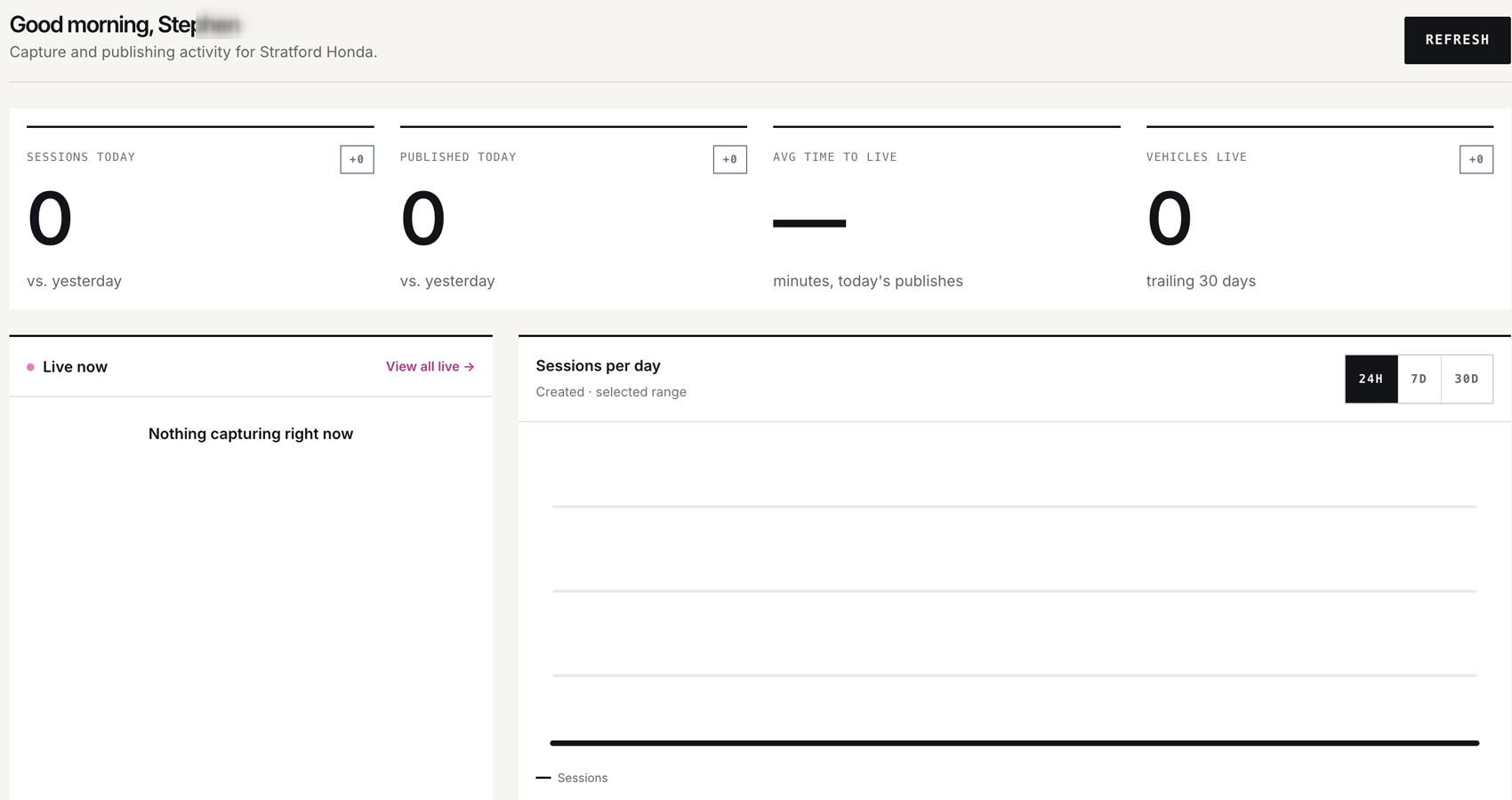
- Sessions today / Published today
- Today’s counts, with a comparison against yesterday.
- Avg time to live
- Minutes for today’s publishes. A dash means no value is displayed; it is not a promised delivery time.
- Vehicles live
- The dashboard’s trailing 30-day count.
- Live now / View all live
- See captures currently in progress and open the filtered session list.
- 24H / 7D / 30D
- Change the Sessions per day chart’s date range. The chart counts sessions created in that range.
- Recent sessions / View all
- Review recent status, image progress and start time, then open Capture Sessions for the full record.
- Refresh
- Reload the dashboard figures.
Give each capture user the right link.
Capture users work entirely in the phone app. Share their assigned capture link and the Capture user guide. They do not need a Prism invitation.
- Open Capture links
In the Prism sidebar, choose Capture links, then Create Capture Link.
- Name the link clearly
Enter a person, department or external partner name. This name appears on captured sessions.
- Create, then share privately
Select Create Capture Link when the name is correct. The link activates immediately and can be reused for new captures. Use the row’s View QR and link control to share the link or QR privately with the intended user.
- Check the first capture together
Have the user open the assigned link on their phone. Confirm the resulting session appears under the expected link in Capture Sessions. Help them add Halo to their home screen.
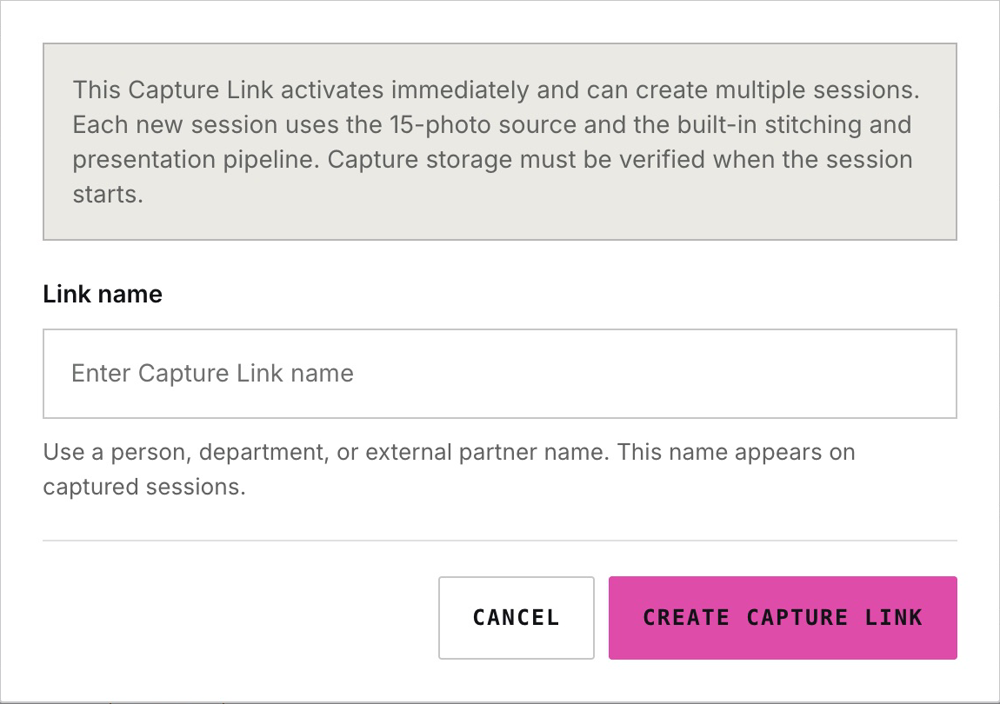
Capture links start new captures.
A session review link opens an existing record. Use the capture-link row’s status, usage and expiry to investigate access problems. Settings affect future-session limits and assignment; existing sessions remain in Capture Sessions.
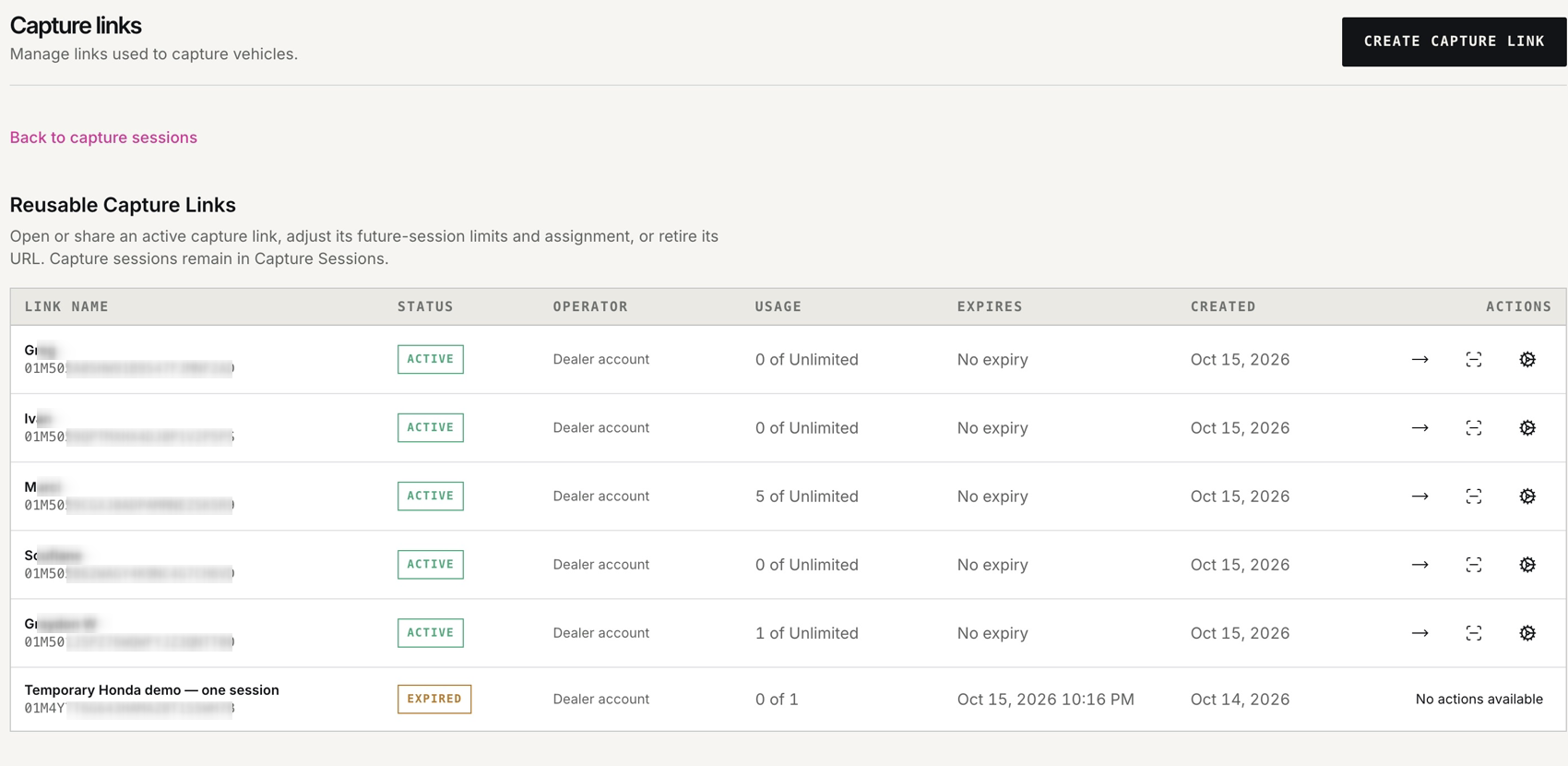
Understand the row controls.
- Status, usage and expiry
- Check that the link is active, has capacity remaining and has not expired. Operator shows its assignment; Dealer account means it is not assigned to a person.
- Open Capture Link
- Opens the phone capture entry point. To share it, use View QR and link. Capture staff do not need dashboard access.
- View QR and link
- Show the reusable link and QR code for the intended capture user. Send it privately.
- Settings → Operator
- Assign a dashboard operator, or leave Dealer account — unassigned. This is separate from inviting an administrator.
- Settings → Session limit
- Leave blank for unlimited sessions. The limit cannot be lower than the number already created.
- Settings → Expires
- Set when the link stops accepting new captures; leave blank for no expiry.
- Source profile
- Shows the built-in capture sequence used by new sessions. Existing sessions retain their original profile.
- Save settings / Cancel
- Save commits the changes. Cancel closes the form without applying them.
- Rotate URL
- Creates a replacement URL and disables the old one. Give the intended users the new link and QR code.
- Revoke link
- Disables the URL without a replacement. Existing captures remain in Capture Sessions.
Invite the people who manage Halo.
Use Team for dashboard access, including additional dealership administrators. Capture-only staff receive a capture link instead.
- Open Team → Invite
Choose Team in the sidebar, then Invite.
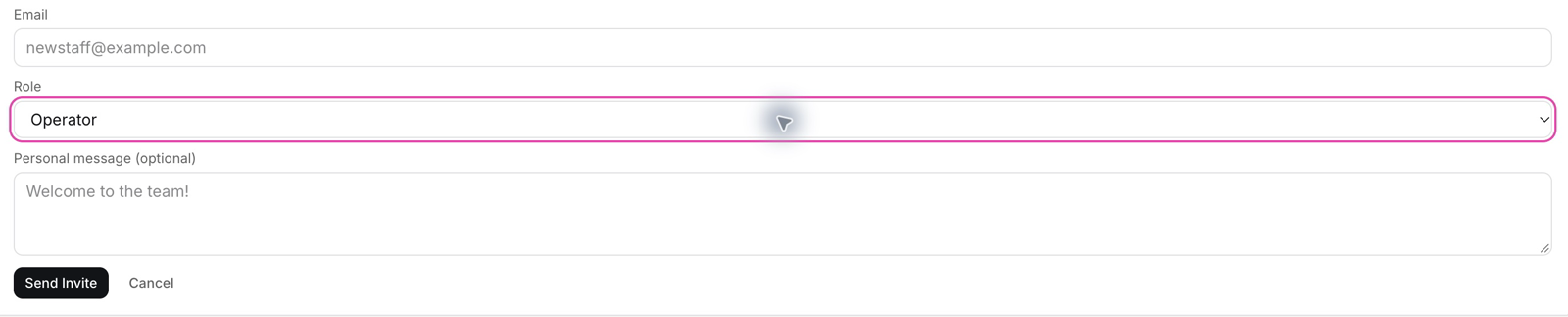
- Enter the work email and choose the role
For an additional administrator, change Role from its default Operator to Admin. The menu offers Admin, Operator and Viewer. Choose the access appropriate to that person’s responsibilities.
- Review and send
Add an optional personal message. Check the email and selected role before choosing Send Invite.
- Check the team record
Have the recipient complete the invitation steps. Review their role and status in Team; investigate any access problem with your onboarding lead.

- Name / Email
- Identify the account receiving dashboard access. Check the work email before sending an invitation.
- Role
- Choose Admin for another dealership administrator. Operator and Viewer are separate access roles; use the role that matches the person’s job.
- Status / Date
- Check the account’s displayed status and date. If an invite has not been completed or access is missing, confirm the recipient and role with your Halo contact.
- Capture-only staff
- Give them a capture link. Do not invite them to Prism just to take photos.
Find a capture session
- Search by VIN
Open Capture Sessions. Enter the full 17-character VIN and choose Find Vehicle. Use the capture-link and status filters to narrow the results.
- Open the photos
Check the captured-photo count and date, then select View photos. Within the session, expand Session activity to review capture, processing and delivery events. Activity times are shown in UTC.
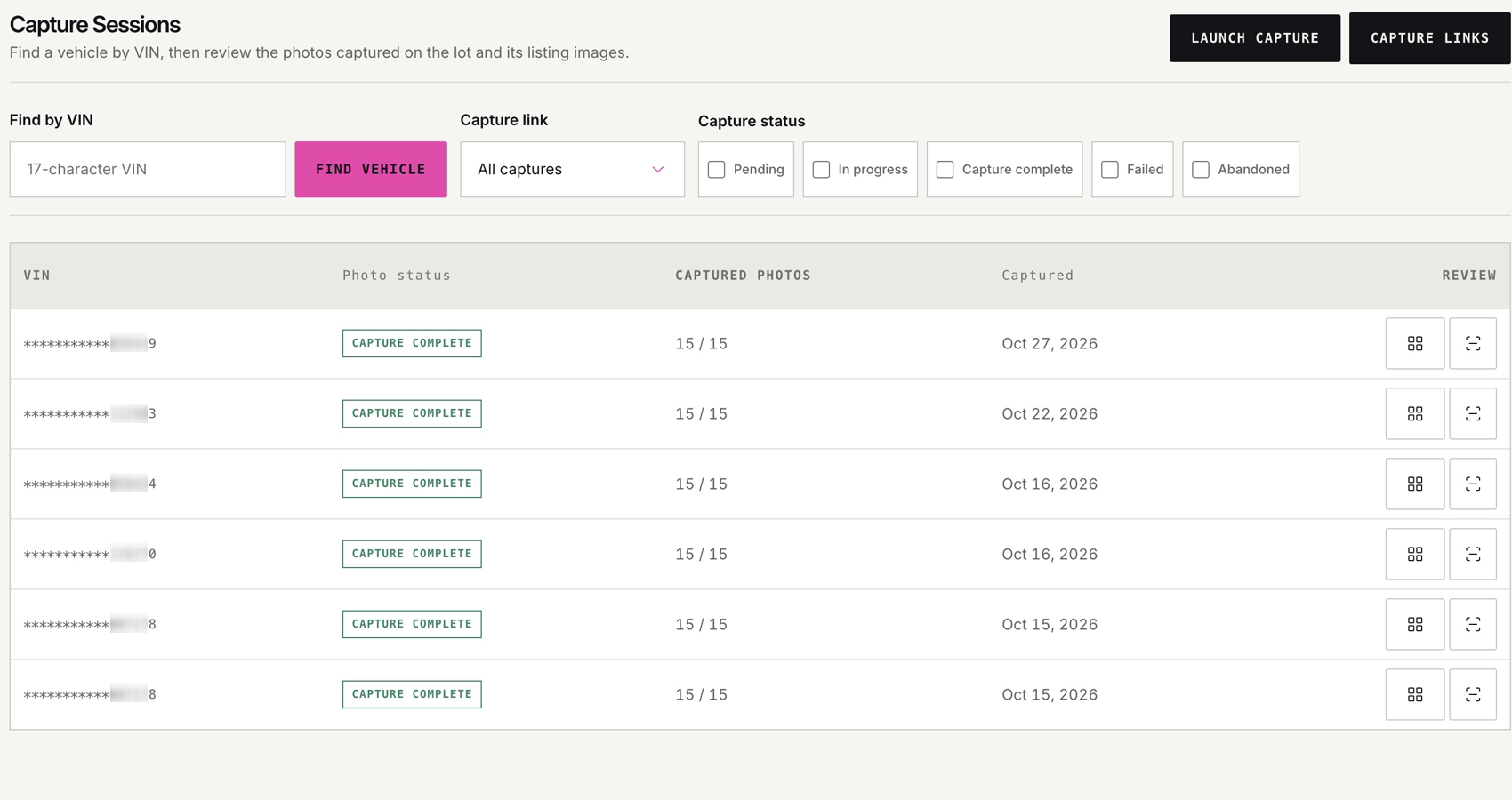
- Find by VIN
- Enter all 17 characters, even when the result displays a masked VIN.
- Capture link filter
- Limit the list to sessions created from a particular reusable link.
- Capture status
- Use Pending, In progress, Capture complete, Failed or Abandoned to narrow the list. Clear filters when a vehicle seems missing.
- Captured photos / Captured
- Check the received count and capture date before opening the result.
- Review controls
- The gallery control opens photos. The adjacent session-details control shows the associated capture-link information.
- Launch Capture / Capture Links
- Launch Capture opens capture entry; Capture Links opens reusable-link management. Staff normally start from the assigned link on their phone.
Review the three image stages
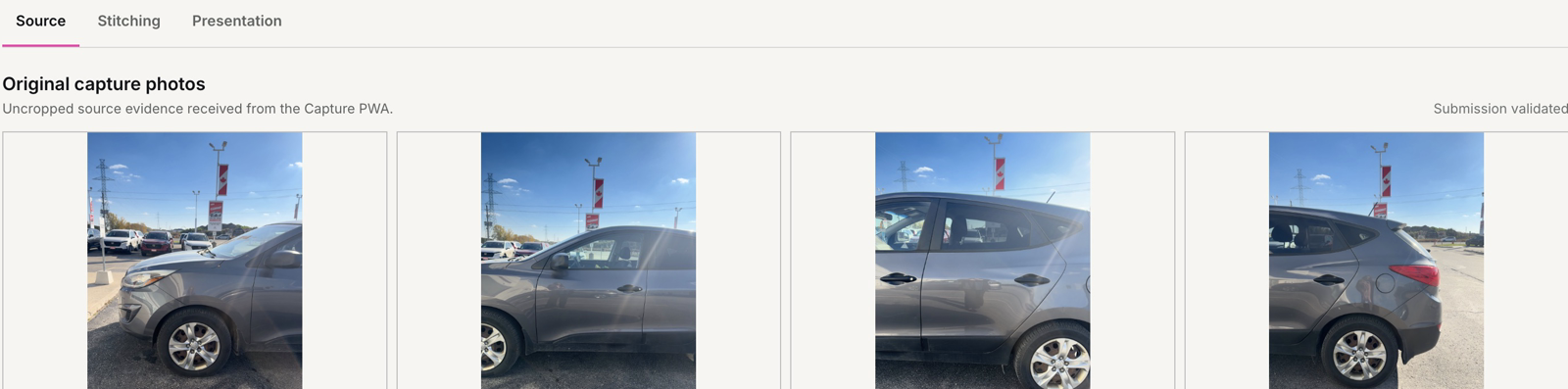
In Prism, open the vehicle’s capture session and use the three photo-stage tabs. Each tab answers a different question.
The original, uncropped photos received from the Capture PWA. Check coverage, clarity and the vehicle’s visible condition.
Intermediate transparent eight-view images before dealership presentation. These are for review and are not exportable from this stage.
The finished dealership presentation images. Review the vehicle, edges, background and branding. “Generated” is not an approval or publishing status.
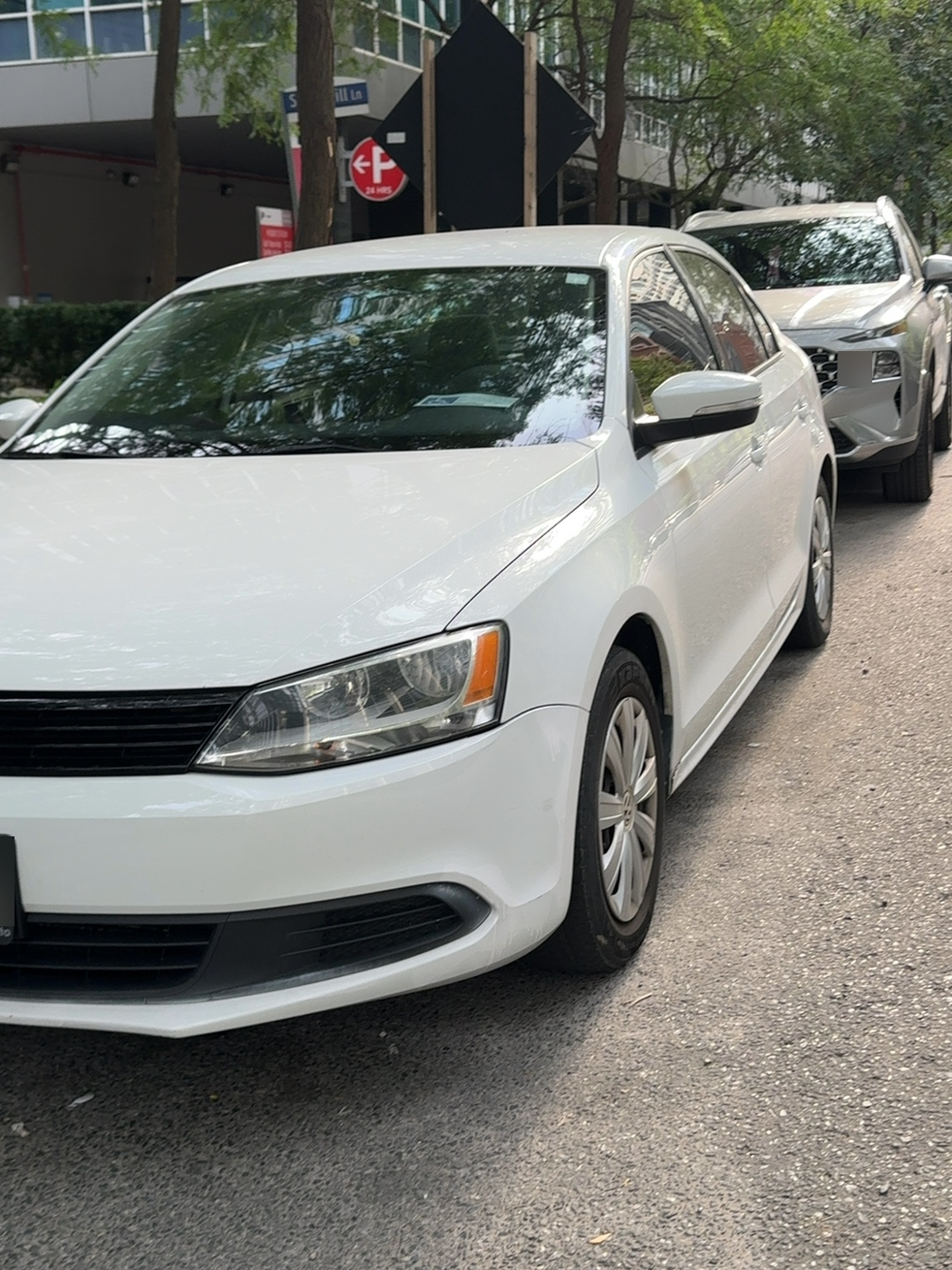
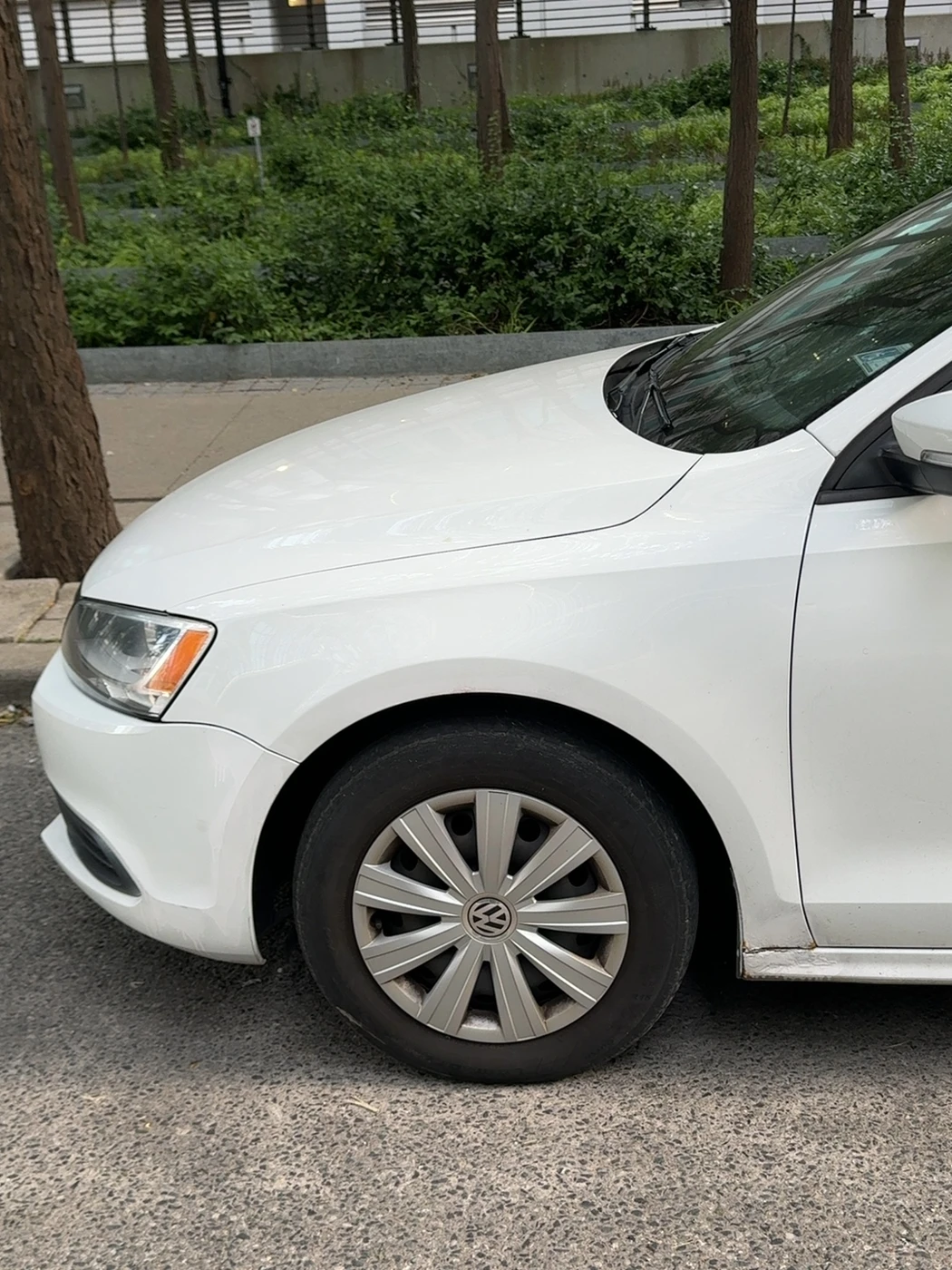
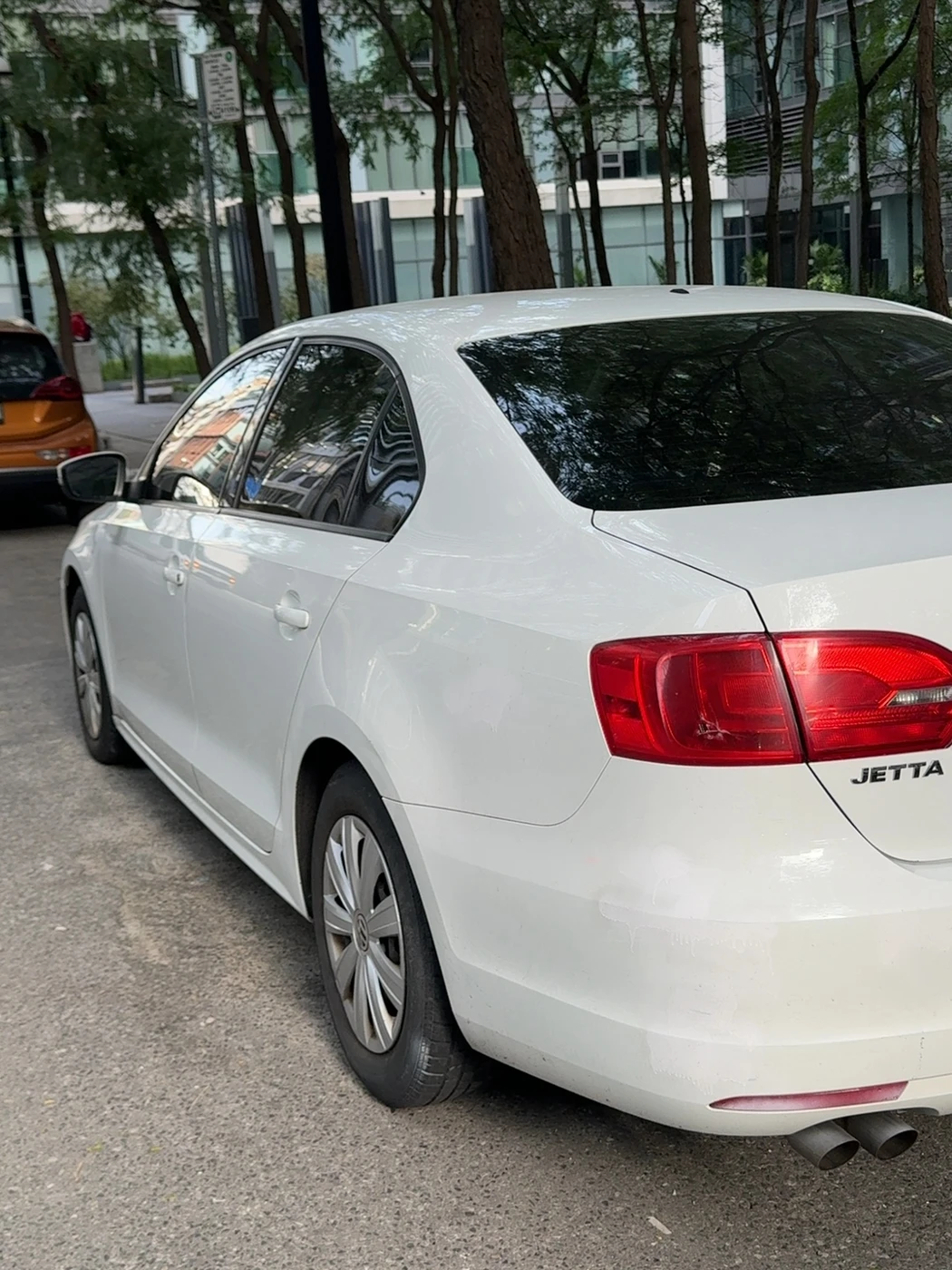
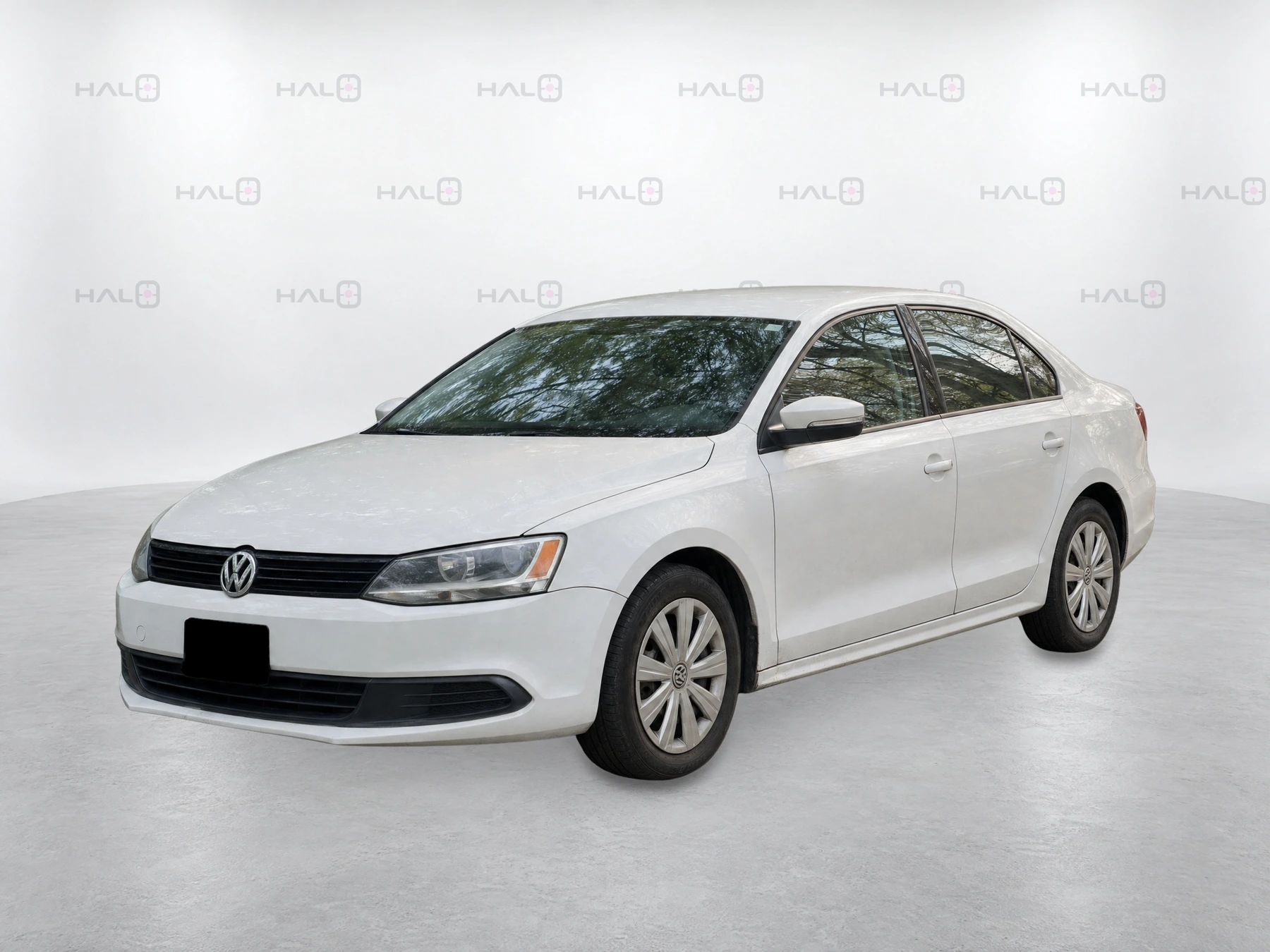
Report a problem before it reaches the listing.
Check for missing views, clipped vehicle parts, incorrect details or distracting presentation. Send the session reference and affected view to your dealership lead or Halo. Do not treat an automated pass as final merchandising approval.
Inside a session
- Session status and dates
- Check Photos, Started, Completed and Created. Capture complete confirms the capture stage; check delivery separately.
- vAuto delivery
- Look for Delivered and the verified raw-photo count, then confirm the correct vehicle in vAuto.
- Session activity
- Expand the event history to follow submission, processing and delivery. Include the event time and timezone when reporting a problem.
- Show VIN evidence
- Reveal the identification photo when checking a mismatch. Keep this evidence private.
- Photo thumbnails
- Open a view to inspect details at a useful size before accepting the image set.
- Download photo package
- Download the session’s available photo package when needed. This does not publish the images to a listing.
Check appraisal and listing delivery
Before the capture: confirm the appraisal exists in vAuto.
For appraisal delivery, the vehicle must already be saved as an appraisal in your connected vAuto account. Confirm the VIN matches the vehicle and the VIN entered in Halo. The person capturing the vehicle checks vAuto and creates and saves the appraisal if it is missing, before starting Halo.
Appraisal imagery and retail listing imagery have different jobs. Follow the vehicle through both stages, using the correct VIN throughout.
AT APPRAISAL / VAUTO
Original photos support the appraisal.
Complete and upload the Halo capture, then check the session’s vAuto delivery panel. Look for Delivered and the verified raw-photo count. Confirm the images against the right vehicle in vAuto.

AFTER ACQUISITION & STOCK-IN / MERCHANDISING
The finished set supports the listing.
A matching inventory record and approved images are required for publishing. Your dealership’s connected feed carries the finished images onward. Confirm the correct photo set on the dealership website and relevant listing destinations.
Boost-connected stores
Use mapped Boost inventory to check the vehicle record. Confirm finished-image delivery and the actual downstream listing with your merchandising lead.
HomeNet-connected stores
Approved final images can enter the configured CSV/SFTP delivery workflow. Check CSV history and Delivery history. A configured Dealer ID, shared transport and schedule are needed for scheduled delivery.
Two ways to start
Appraisal first: capture the trade-in, use the original photos in vAuto, then reuse the approved merchandising set after acquisition and stock-in.
Arrival first: capture new or already-acquired inventory when it arrives, then follow the same upload, review and delivery checks. An appraisal is not required for every vehicle.
The capture stage has completed. Check the received photo count and delivery status separately.
The raw appraisal photos were verified at vAuto. This does not prove the finished listing images are online.
Images have been produced. Review and approval remain separate.
Check the actual vehicle listing and gallery. Feed timing can vary; escalate with the VIN and the last confirmed stage.
Keep the gallery current.
An appraisal capture can provide the first merchandising set. Once recon and detailing are complete, refresh the exterior so the photos show how the vehicle looks now.
Refresh the exterior
Confirm the same vehicle identity, complete the guided walkaround and verify upload again. Have the responsible person check that the intended refreshed images reach the listing.
Complete the vehicle story
Add interior and feature photos through the configured capture flow. Halo supports up to 25 additional photos depending on your store’s setup. Follow the requested views and avoid personal documents or belongings.
Check stock and record arrivals.
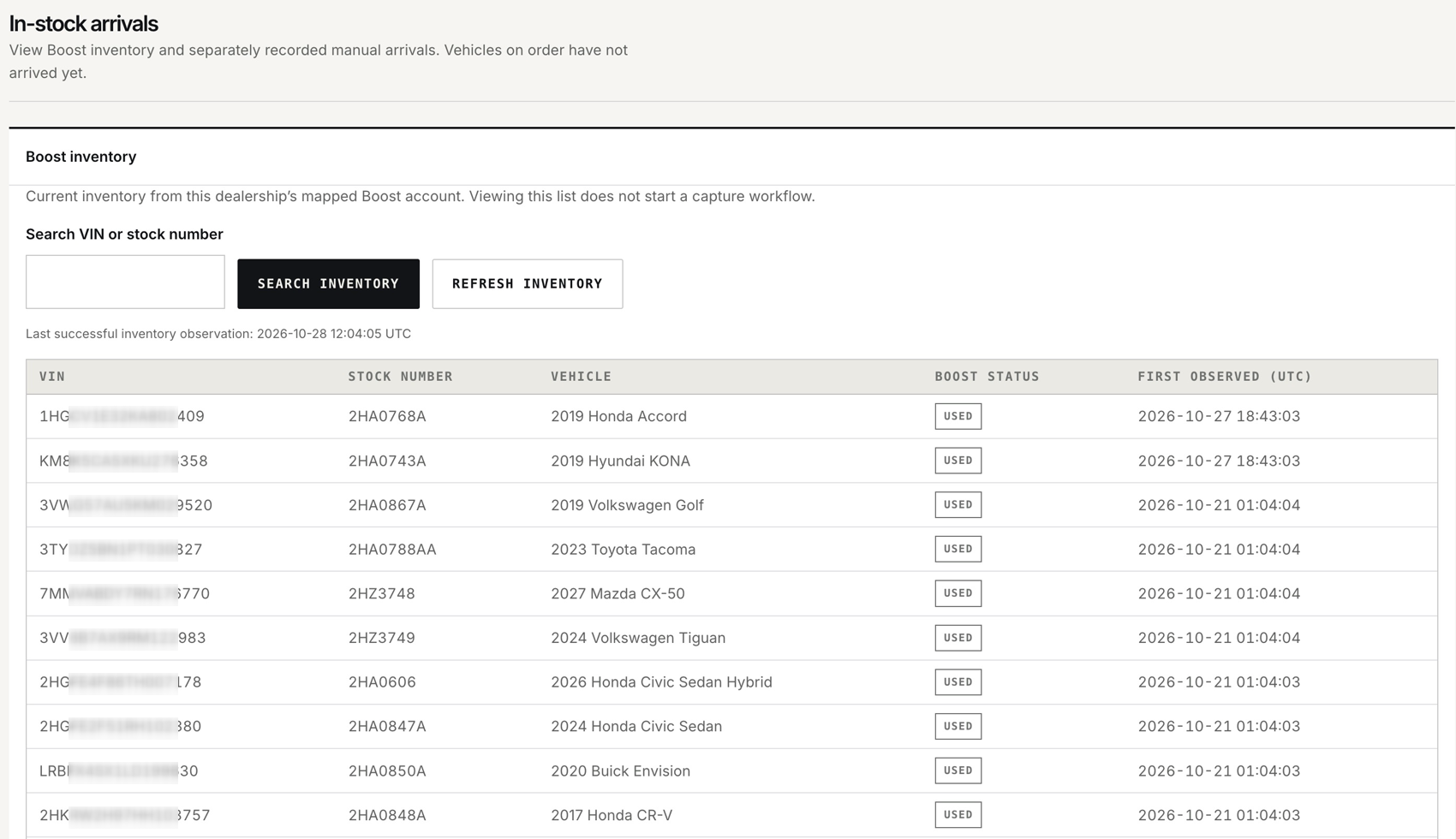
- Search inventory
- Search by VIN or stock number. Check the vehicle and Boost classification against your stock record.
- Refresh inventory
- Reload the inventory view. Check Last successful inventory observation to judge how current it is.
- First observed (UTC)
- When Halo first ingested that record, not when the vehicle physically arrived. Vehicles on order have not arrived yet.
- Inventory messages
- If the view reports stale data or synchronization trouble, check the last observation and ask Halo to review the connection. An empty search can also mean the VIN or stock number does not match.
- Inventory pages
- Use Previous / Next inventory page to browse matching records.
- Manual arrival
- For your store’s manual-arrival process, enter the required 17-character VIN and optional stock number, then select Record arrival after the vehicle arrives.
- Arrival recorded / Recent manual arrivals
- Check the receipt and the VIN, stock number and Last recorded value. If the form reports an error, correct it before trying again. Roles without permission can view arrivals but cannot record them.
Build CSV files and check delivery.
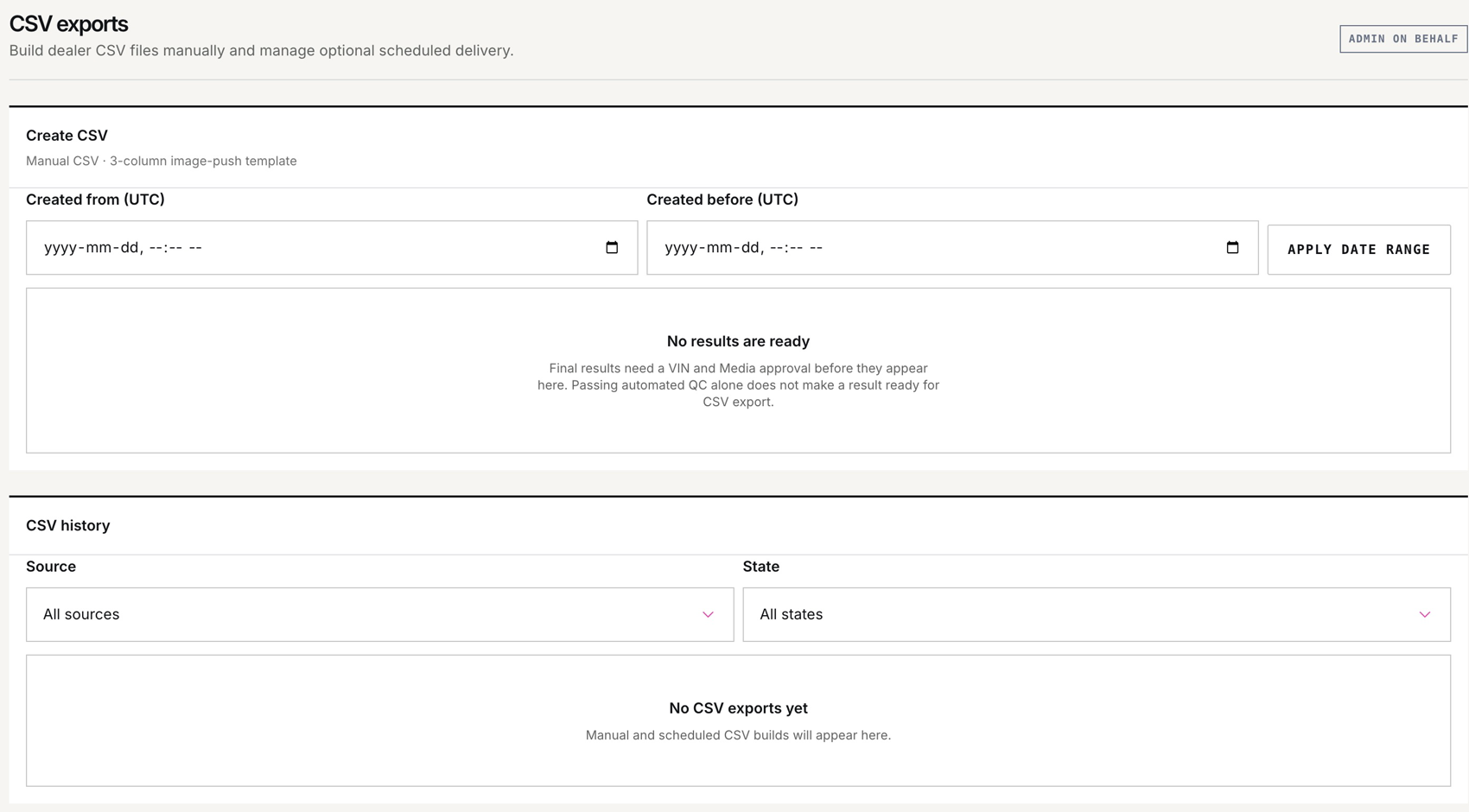
- Create CSV
- Choose Created from and Created before in UTC, then Apply date range to see eligible final results. These fields filter the export candidates.
- No results are ready
- Final results require a VIN and Media approval. Passing automated QC is not enough. Check the vehicle’s review status with your merchandising lead.
- CSV history
- Use Source and State to find manual or scheduled builds. Review the build record before treating the file as ready.
- HomeNet Dealer ID
- Use the ID supplied for this dealership’s HomeNet connection. Save Dealer ID stores it for this dealership; the field is write-only, so the saved value is not shown back.
- Enterprise SFTP settings
- The enterprise account manages shared transport credentials and the schedule. Confirm these with Halo during connection setup.
- Delivery history
- Review scheduled delivery attempts separately from CSV builds. A built file alone does not confirm delivery or that a listing has updated.
- Boost-connected stores
- Use your configured Boost route and verify the actual listing. Do not enable HomeNet simply because the adapter appears in the menu.
Set up the dealership’s image presentation.
These defaults apply to new presentation runs. Existing listing images stay unchanged.
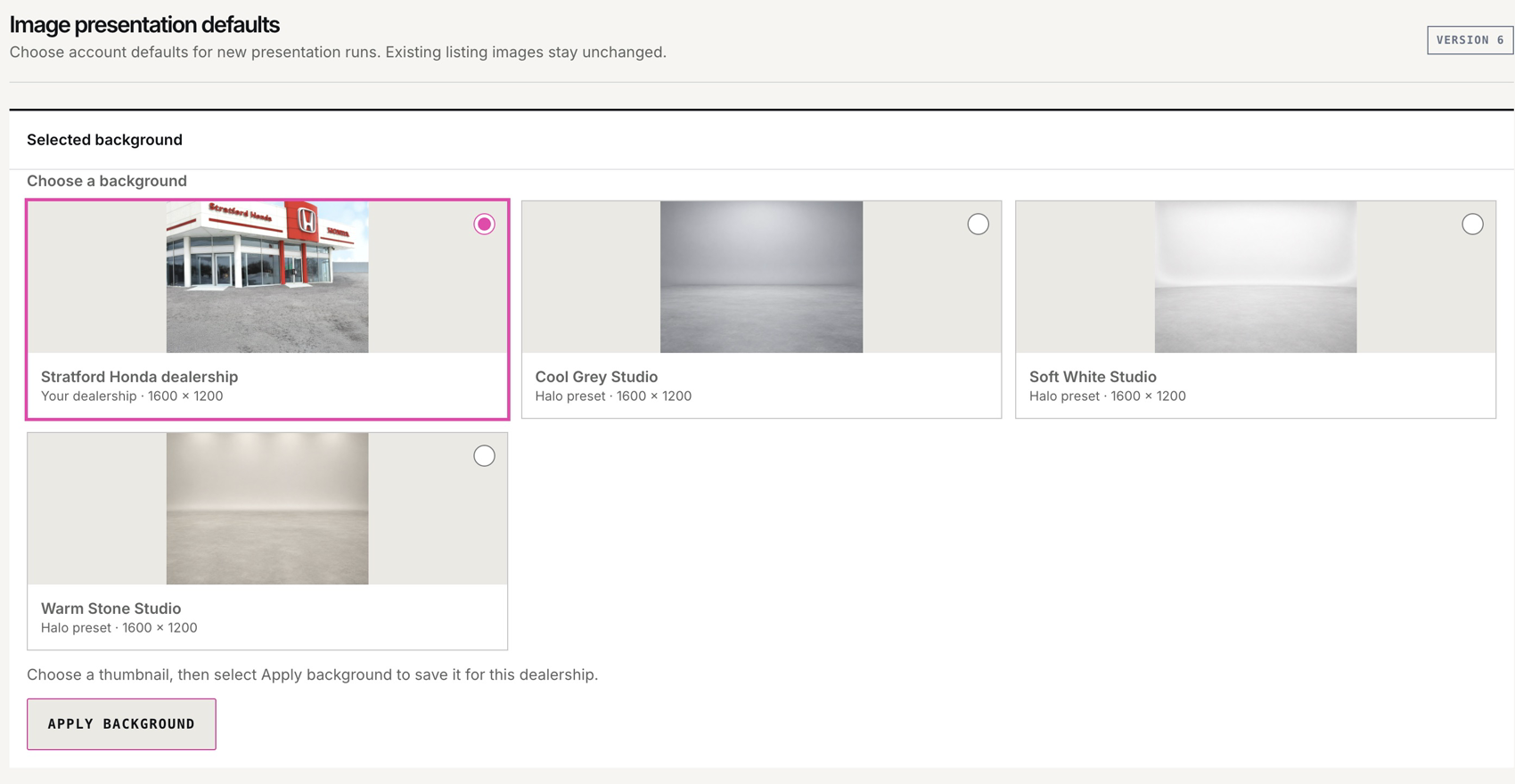
- Selected background
- Choose the dealership background or a Halo preset, then Apply background to save the selection.
- Upload a presentation asset
- Choose Asset type, select the file and enter a useful label. For backgrounds, use an empty 4:3 scene: 2400 × 1800 is recommended; 1600 × 1200 or larger is accepted, up to 30 MiB and 50 megapixels, as a still JPG/JPEG or PNG. Follow the on-screen requirements for each asset type.
- Upload behavior
- A validated upload becomes the active asset of that type. Previous files remain inactive. Upload logo and banner artwork separately from the background.
- Your account assets
- Check the Active badge, type and dimensions. Deactivate stops using an active asset; Archive and Delete are asset-management actions, not preview controls. Read the confirmation before changing an asset.
- Logo
- Choose No logo or your uploaded transparent PNG. Position, width and opacity controls define how it appears.
- Bottom banner
- Choose No banner or your uploaded artwork. It retains its proportions across the image width. Use No banner when the banner is already part of your background.
- Placement preview
- Unlock placement when ready to edit. Drag and resize the logo, or use the numeric fields and arrow keys. Shift makes smaller keyboard adjustments; Escape cancels a drag. Save & lock placement stores the result.
- Vehicle placement
- Use the automatic layout for all eight views or select an individual angle in Adjust. Unlock all-view layout to edit the shared settings. Per-view adjustments are preserved when the shared layout changes.
- Size / Left-right / Ground / Shadow
- Adjust vehicle scale, horizontal position, ground level and shadow strength. Review all eight angles, then Save & lock placement.
- Reset all views
- Resets the view adjustments when enabled. Use it only when you intend to replace the current layout.
- View buttons / Hide shadows
- Switch between eight sample angles to inspect the layout. Hide shadows is a comparison preview and does not change saved settings.
- Final image check
- The sample preview illustrates placement. Review actual presentation results for vehicle edges, tyre contact, branding and shadows before listing approval.
Give support the useful details.
Send the dealership, vehicle VIN or stock number, session reference, approximate time and exact message or affected view to your Halo contact. Share screenshots privately. Do not post reusable capture links or QR codes publicly.
Contact Halo → hello@haloeye.ai
Your account menu
Use the profile menu at the bottom of the navigation to manage your session or sign out. The Dealer mode and Return to Internal Admin controls shown during a Halo support visit are for delegated support access; dealership staff do not need them.