
Open the link your manager sent you.
Use the phone you will take photos with.
- Open your assigned link
Confirm the link is for your dealership. If you have not received it, contact your manager before starting.
- Add Halo to your home screen
Follow the phone instructions below. Add the capture app to your home screen, then open the shortcut. Keep your assigned link in case you need it again.
- Allow the camera
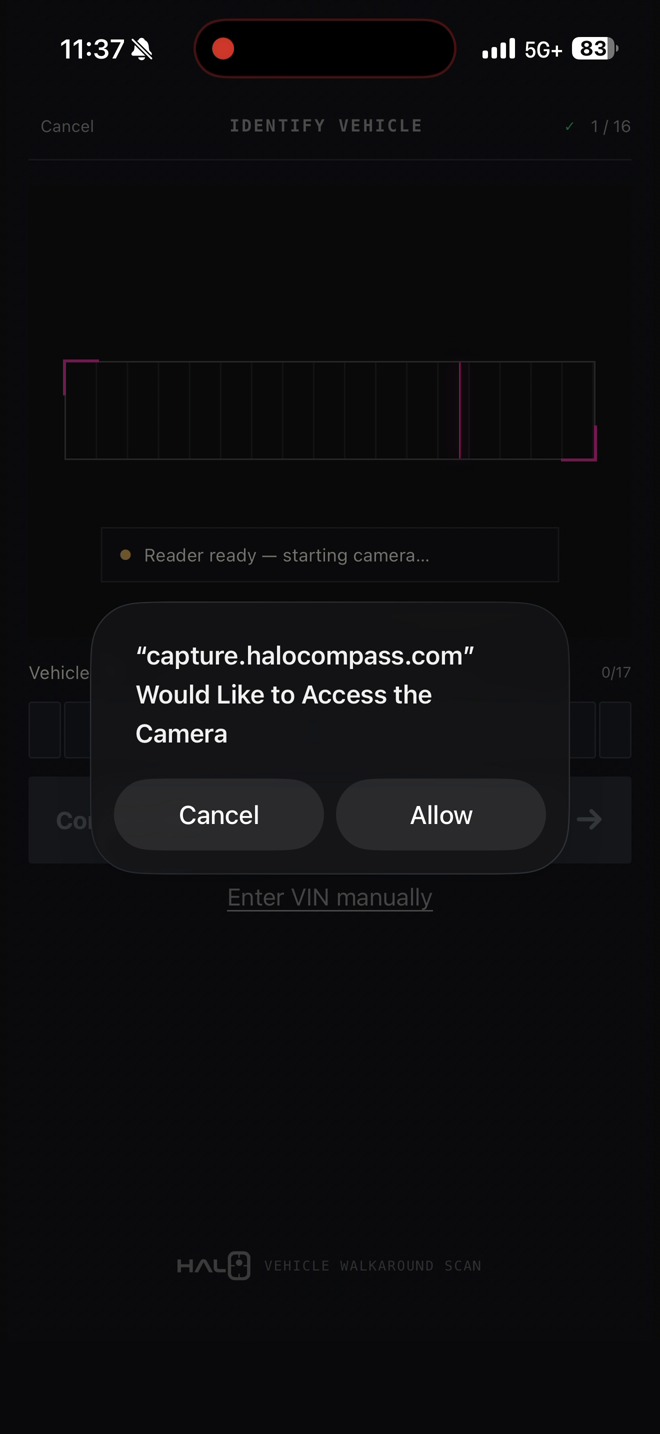
Tap Allow when Halo asks to use your camera. Clean your lens, check your battery and finish initial setup while connected.

Look for the Halo icon.
The white outline and pink dot help you find Halo again. There is no separate app-store download.
Camera blocked?
Allow camera access for Halo in your browser or phone settings, then reopen your assigned link. Ask your dealership contact if you are still stuck.

Check the vehicle before you start.
For an appraisal: confirm the vAuto record first.
- Before starting Halo, open vAuto and confirm the vehicle is saved as an appraisal in your dealership’s connected account.
- Check that its VIN matches the physical vehicle. Use that same VIN in Halo so Halo can find the appraisal and attach the original photos.
- If the appraisal is missing, create and save it in vAuto before starting the Halo capture.
For in-stock vehicles: use your dealership’s arrival-first process. A vAuto appraisal is only required for the appraisal-photo workflow.
- Confirm the VIN before you start
Check the VIN in Halo against the vehicle and the appraisal or stock record. Correct any mismatch before continuing. Confirm any requested odometer details.
- Make the whole walkaround possible
Allow about five feet of working clearance where practical. Check both sides, front and rear. If another vehicle or obstacle blocks a required view, arrange to move the vehicle safely before continuing.
- Prepare a consistent exterior
Close doors, hood and tailgate for the exterior sequence. Use usable light, keep the lens clean and watch for glare or blur. Keep people and unnecessary personal items out of the photographs.

Move to the dot. Halo takes the shot.
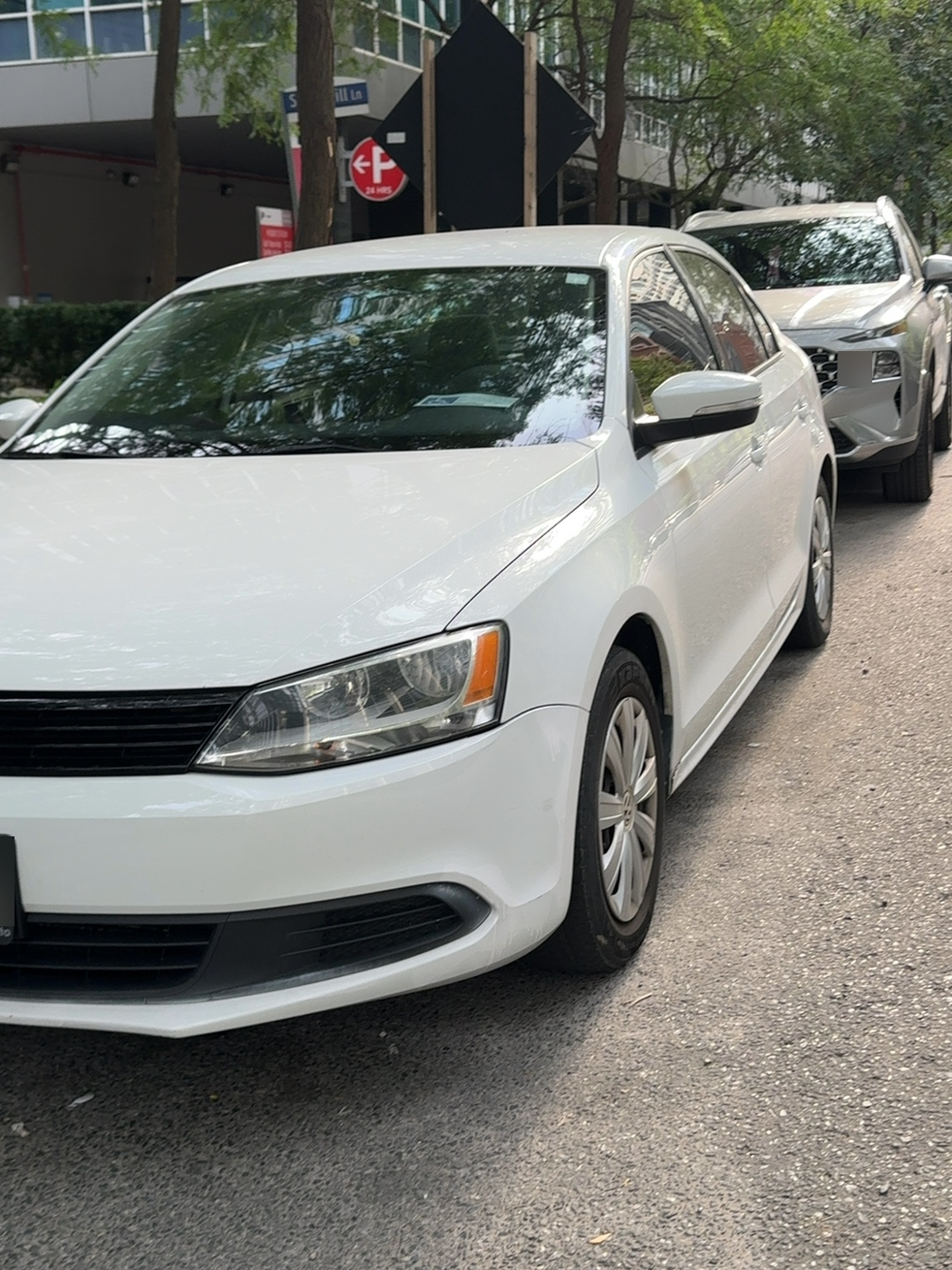
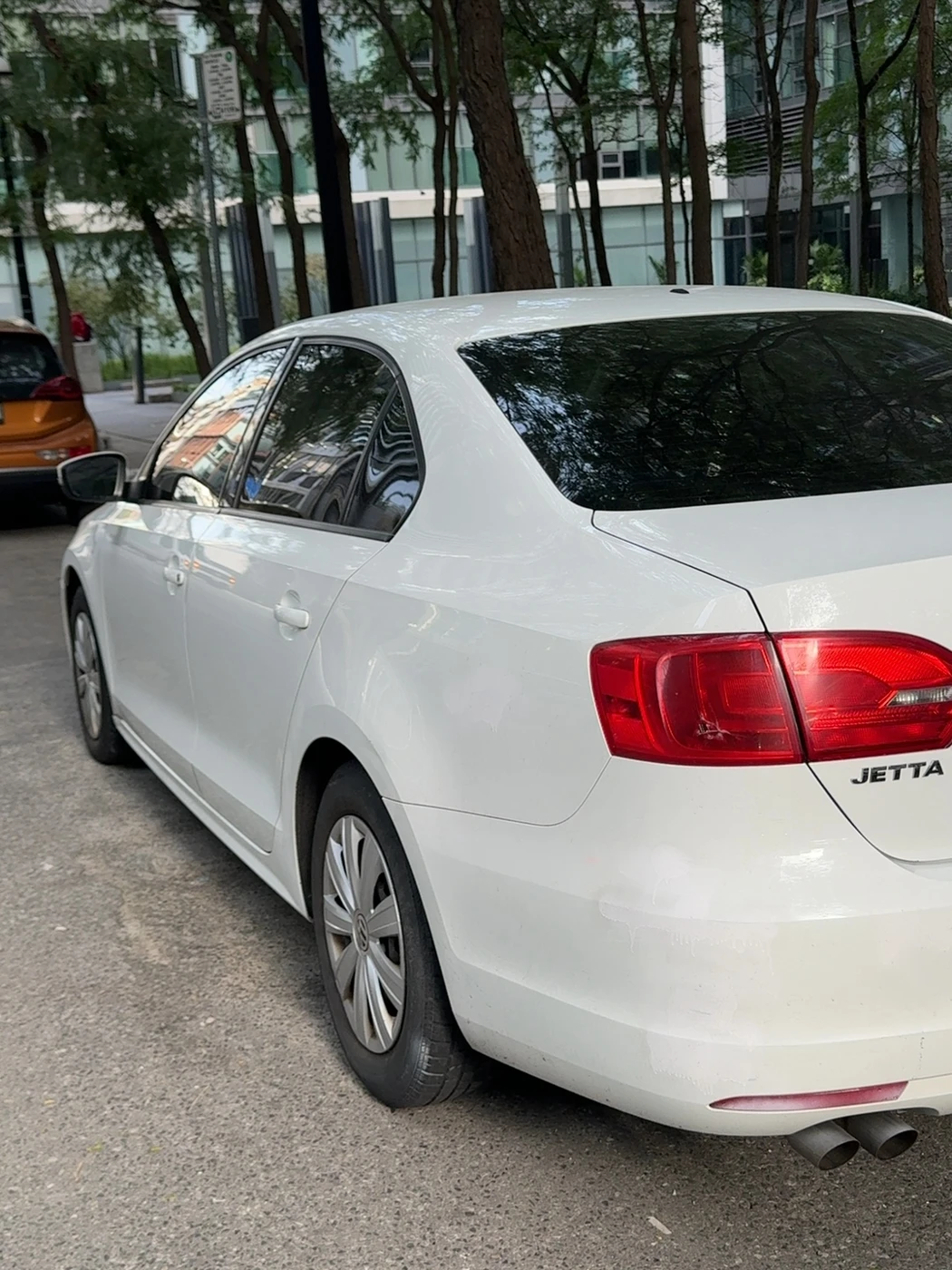
Walk around the vehicle in the order shown on your phone. Follow each target and hold steady for the photo. The 15 close-range views give Halo the coverage for eight finished exterior images.
- Follow the target shown on your phone
Move to the vehicle-anchored magenta dot. Follow the view and target prompts rather than taking unrelated photos from one position.
- Let the guidance set your position
Adjust your distance and phone angle as prompted. Keep the phone level and the requested vehicle area clear.
- Pause for a clear capture
Hold steady. Halo checks view, target, distance, level and clarity before capturing automatically. Wait for the capture to register, then move to the next target.
- Complete all 15 capture points
Continue in the order shown by the app. Do not skip the far side, corners or end views. Check the on-screen progress before finishing.
YOUR 15-POSITION WALKAROUND
See where to stand. See what to frame.
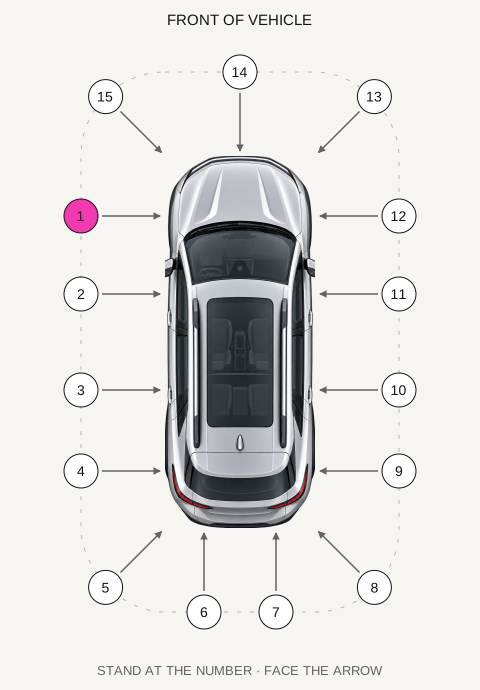
Start at the left front wheel and follow the numbers down the left side, around the rear and back up the right side. Finish across the front. Left and right are the vehicle’s sides as you sit inside facing forward.
Start about 3–4 ft away, hold your phone upright and follow Halo’s distance prompts. The map shows where to stand; adjust your distance for each view.
POSITION 1 / 15
Left front wheel
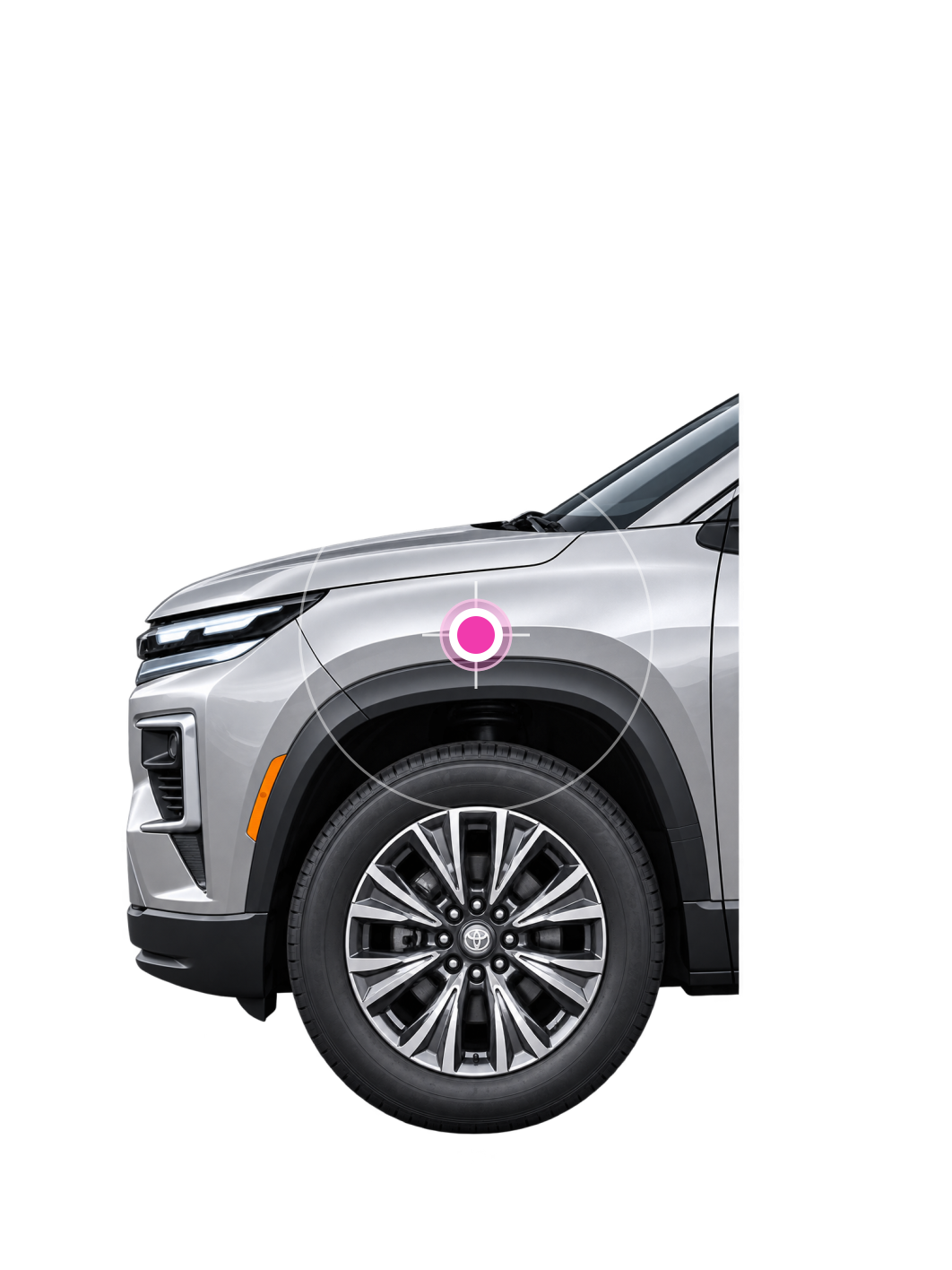
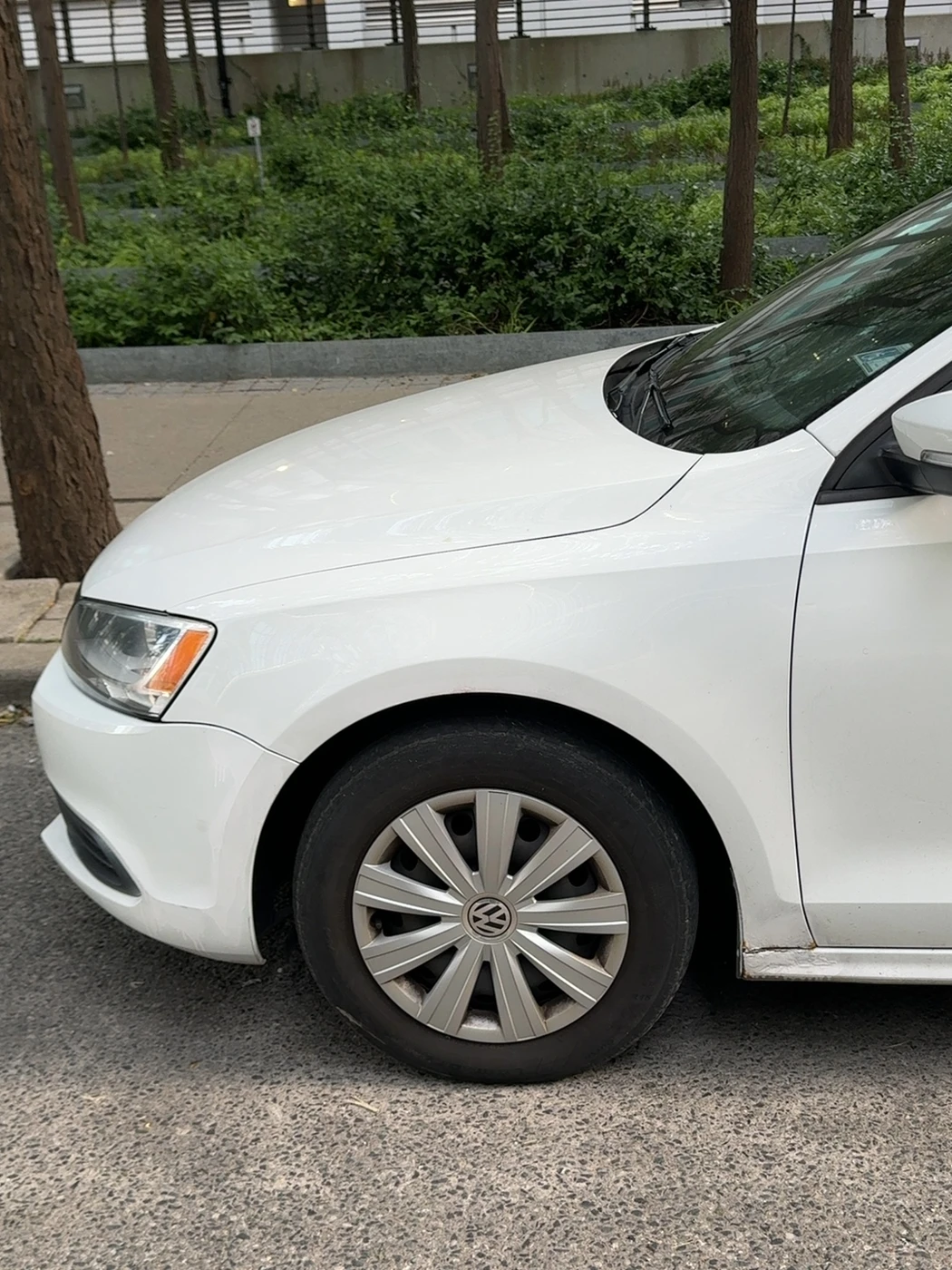
Stand upright. Include the full wheel, fender, and bumper edge.
Match the parts shown on your vehicle, including pickups and vans.

When automatic capture needs help.
Pickups and vans may need manual help while Halo improves its detection. Use the double-tap control when you are correctly positioned but automatic capture is stuck.
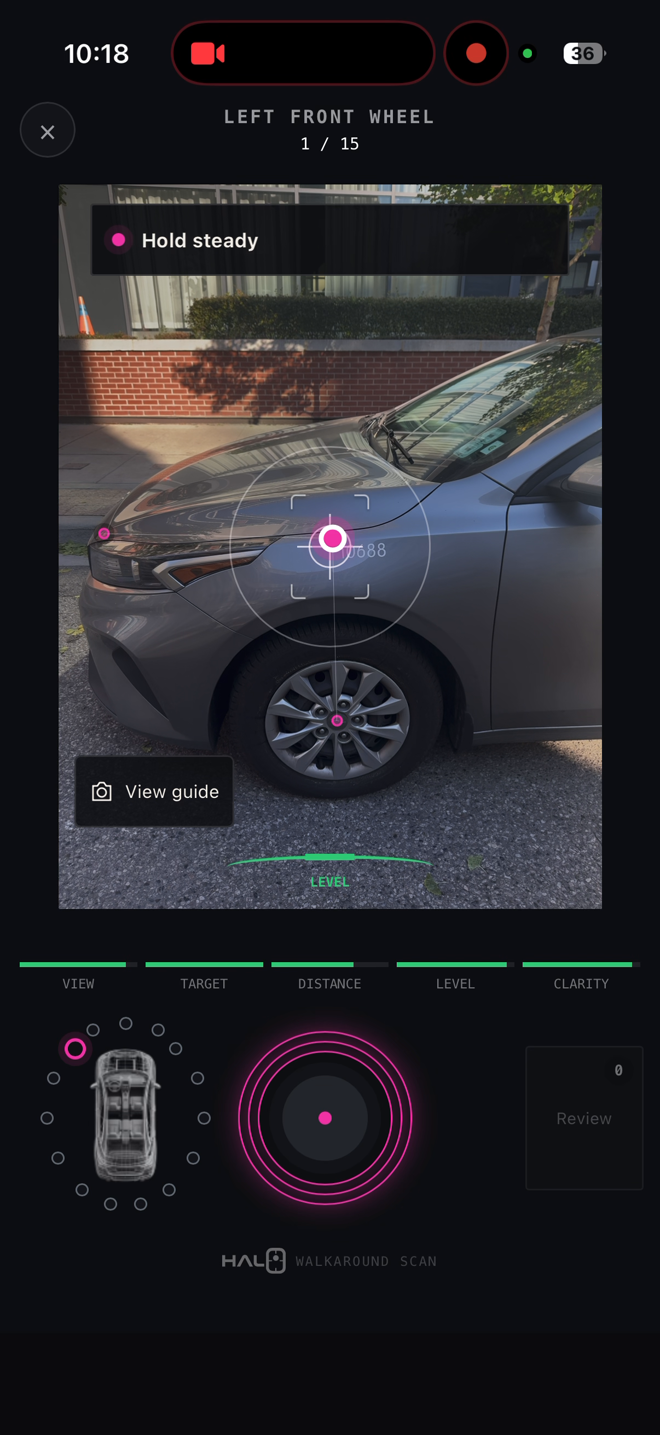
Double-tap the large circle below the camera image. Use the pink target on the vehicle for alignment.
Frame first. Tap twice. Check the photo.
- Read the current view
Check the view name at the top. Open View guide if you need the example. Stand at that view’s position in the orbit.
- Include every requested part
Keep the phone upright and level. Move until the parts shown in the example fit inside the frame with a little space at the edges. Step back if a wheel, bumper, door or lamp is cut off. For corners, include both the side and the front or rear.
- Hold steady and double-tap
When the framing is correct but automatic capture is still stuck, tap the large circular capture control at the bottom centre twice in quick succession. Keep the phone aimed at the same view while tapping.
- Review before moving on
Wait for the shot to register. Check that the photo is sharp and the requested parts are visible. Choose Retake if it is blurred, blocked or cut off; choose Use view when it is right. Follow the next prompt and finish all 15 views.
Every completed capture helps Halo learn. Your photos feed back into the training set after every use, helping improve detection of vehicle types over time.
Check the shot. Continue the walk.
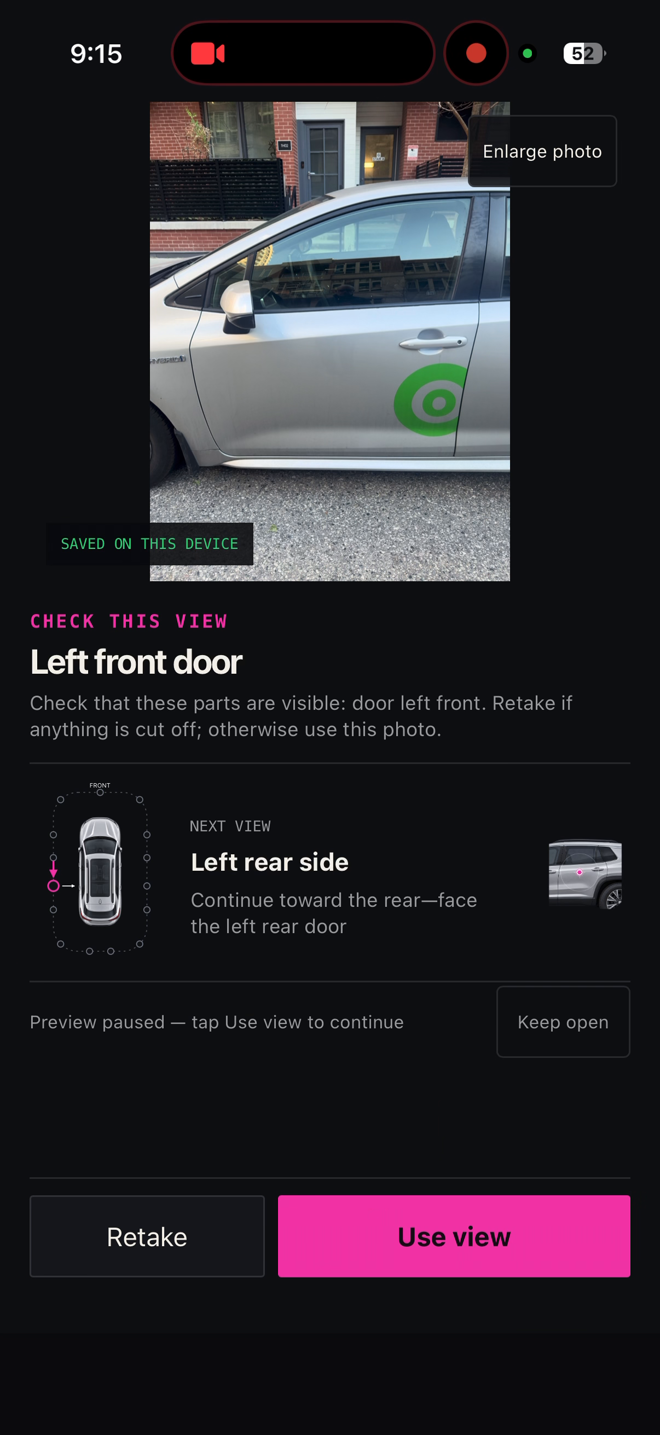
- Check the requested area
Make sure the required parts are visible and the image is clear. A section of the vehicle is expected—follow the example for this view.
- Retake if needed
If the photo is blurred, blocked or cuts off the requested area, choose Retake and capture it again.
- Use the view and follow the next prompt
When the review screen appears and the photo is good, tap Use view. Follow the next-view direction around the vehicle. Continue until all required views are saved.

Keep Halo open until upload is confirmed.
After the last photo, stay connected and keep Halo on screen. Leave your phone unlocked until the app confirms the photos have uploaded.
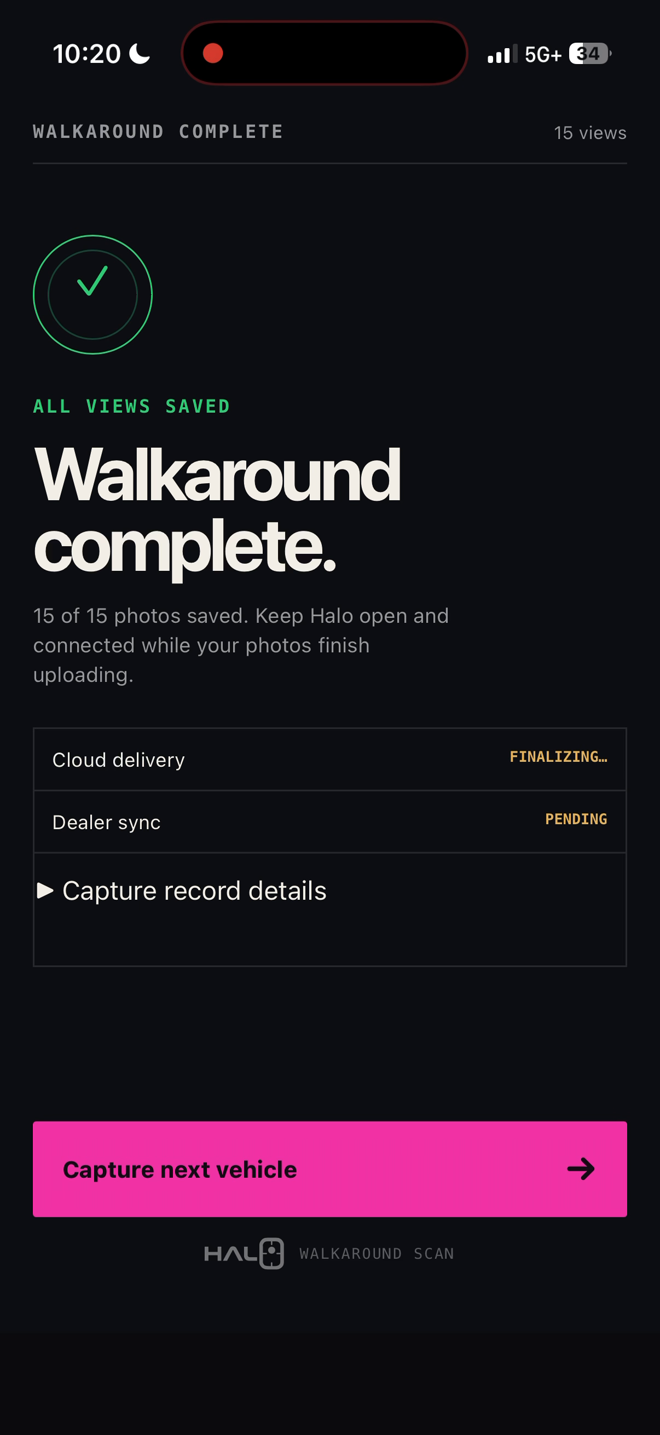
Still says Finalizing, Pending or Keep open?
Keep waiting. “Walkaround complete” and “15 of 15 photos saved” confirm the capture, but the photos may still be uploading.
In this example, Cloud delivery is Finalizing and Dealer sync is Pending. Keep Halo active and connected.
Before you leave Halo
Check for upload confirmation and any remaining instructions to keep the app open. If the status is unclear, ask your manager to confirm the photos were received.
If the upload stalls
Move to a stronger connection and use the retry prompt if offered. Keep the session open. Do not clear browser data or start a duplicate capture. Send your manager the vehicle, time and exact message.

Before you move to the next vehicle
Confirm these three things:
- The VIN matches the vehicle.
- All 15 views are saved and any retakes are complete.
- The upload is confirmed, with no instruction to keep waiting.
Tell your manager about any issues.
Pass on any capture problems or vehicle concerns. Your manager handles the image and listing checks.
When you need a hand.
Ask your dealership administrator for an active capture link.
Send your dealership contact the vehicle, approximate time, phone type and exact message. Share screenshots privately; do not post your capture link or QR code publicly.
Optional: see what your photos become
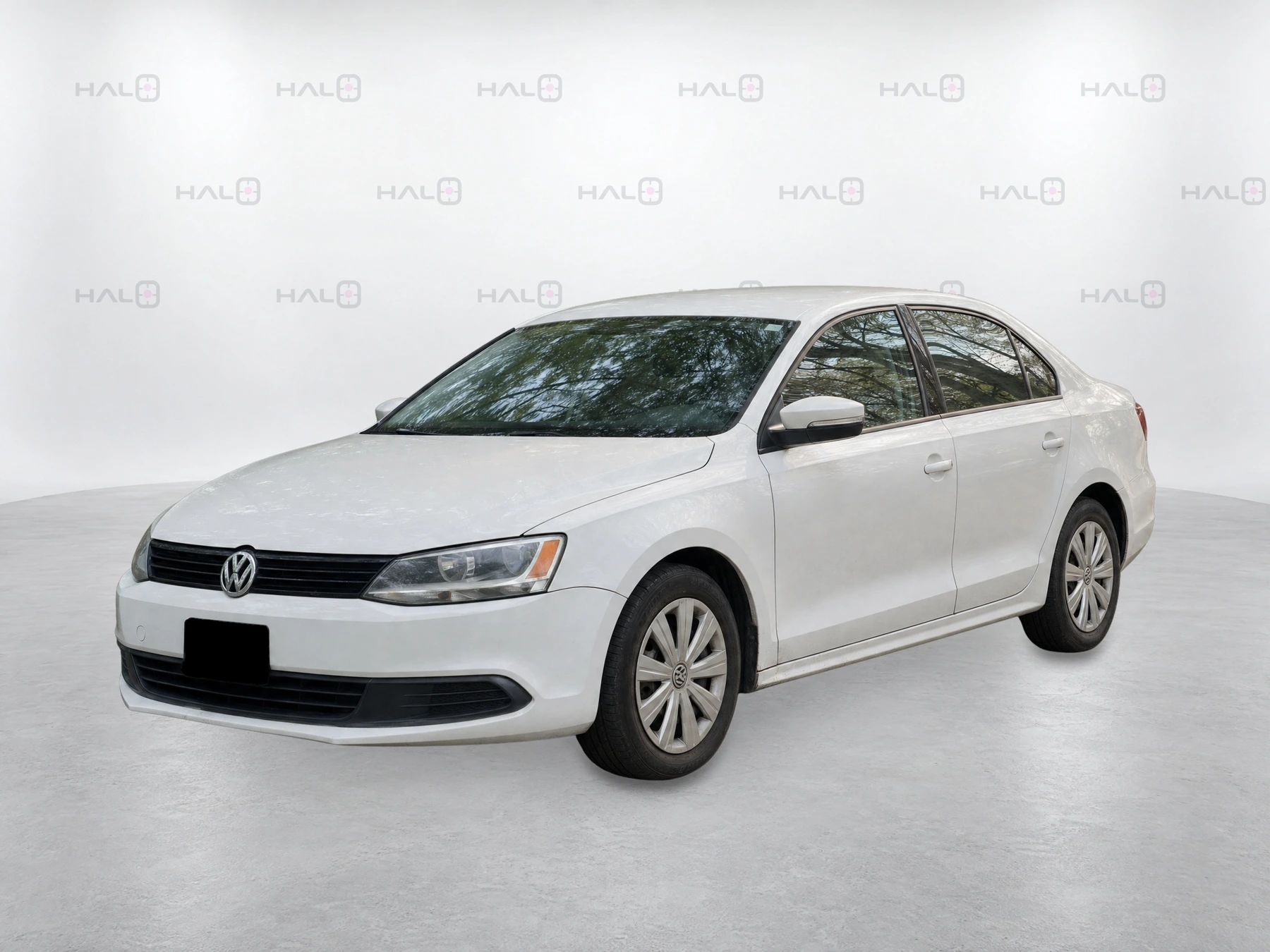
Your original photos help the appraisal team review the vehicle. Halo also turns the capture into eight exterior listing views. Your administrator handles approval and delivery.
In vAuto: the original photos
The connected appraisal receives the original close-range photos, including the wheels, doors and corners you captured.

On the listing: eight finished views
Halo uses the 15 capture points to create eight whole-vehicle exterior views. Once the vehicle is acquired and in stock, approved images can flow through your store’s connected Boost or HomeNet route.